Mistral (Beta) Remote MCP Integration
These instructions walk you through the steps required to add the LLM-Ready API remote MCP server to Mistral (opens in a new tab).
Important note
The Mistral Custom MCP Connector feature currently requires either a free or paid Mistral account with appropriate permissions.
Setup
Step 1: Add the Custom MCP Connector
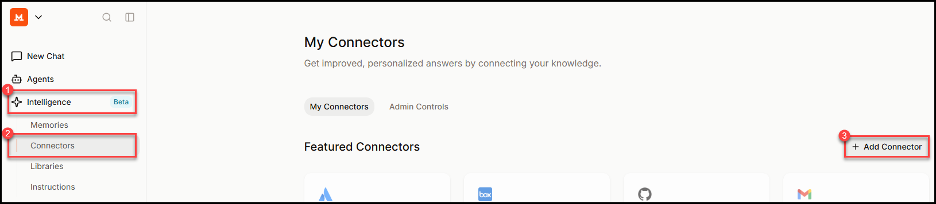
Once you have logged into Mistral, navigate to Intelligence → Connectors → Add Connector.
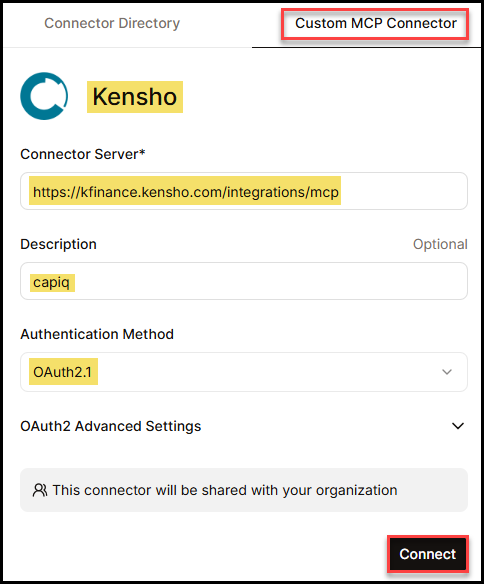
Select the "Custom MCP Connector" and fill out the following fields:
- Connector Name = Kensho
- Connector Server = https://kfinance.kensho.com/integrations/mcp (opens in a new tab)
- Description = capiq
- Authentication Method = OAuth2.1
Click the "Connect" button.
Step 2: Start a new chat
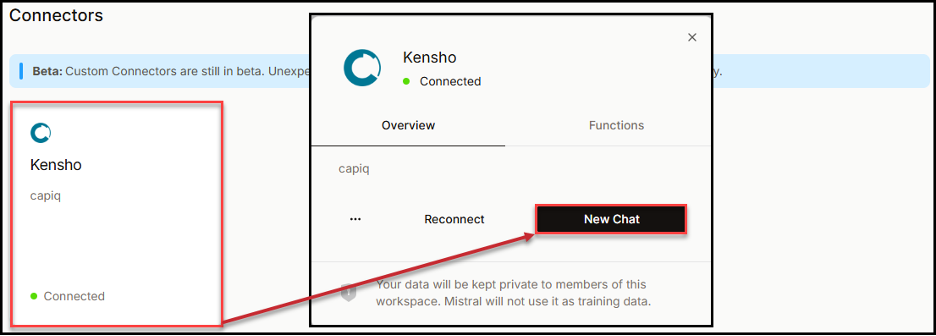
The Kensho connector will now appear in your Connectors list. Select it and click the "New Chat" button.
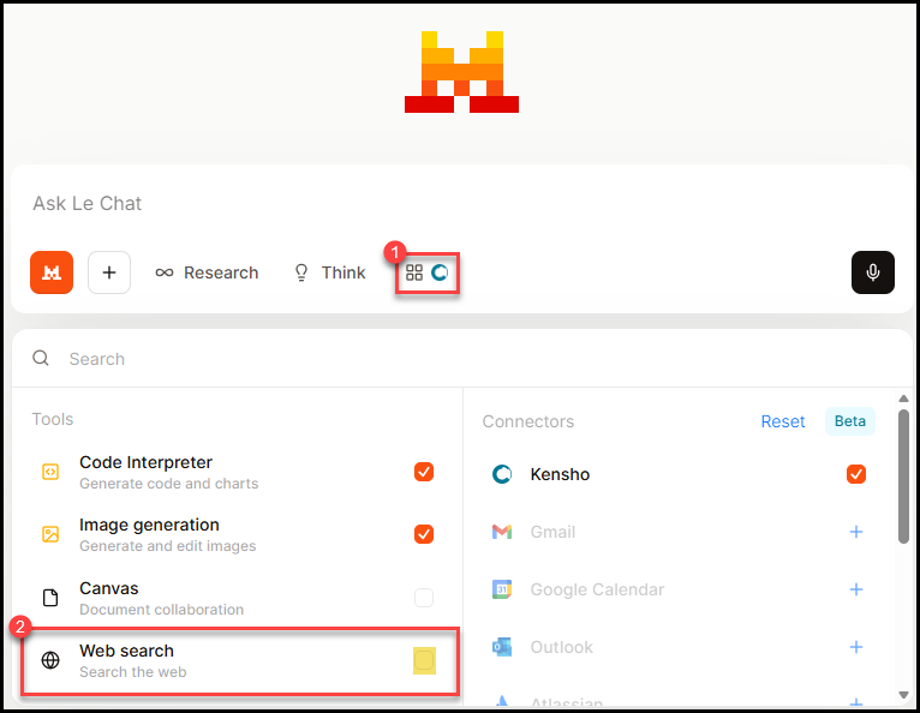
When the chat box opens, click the connectors icon and deselect "Web search".
Step 3: Test with example queries
Test the connector with the following prompts.
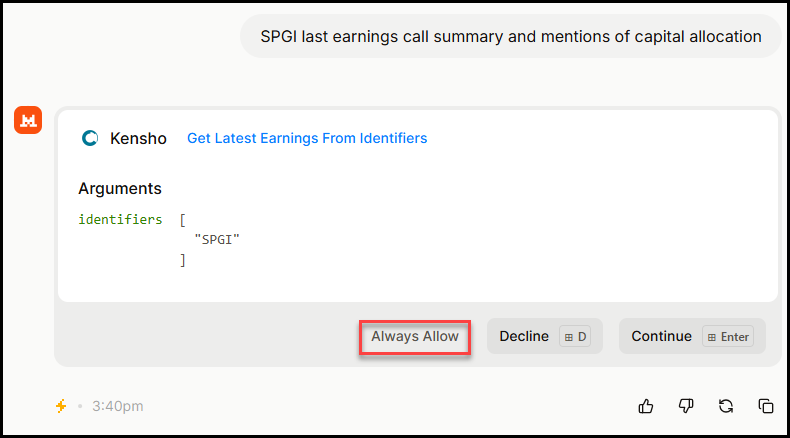
Enter SPGI last earnings call summary and mentions of capital allocation.
Click "Always Allow" when prompted.
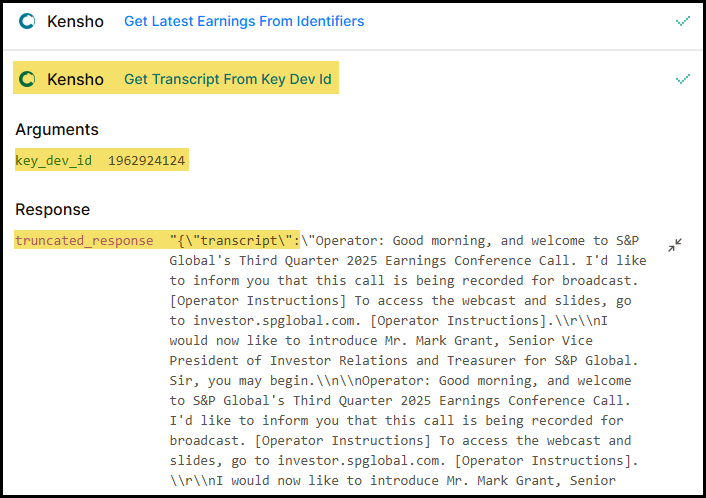
Verify the response is pulling data from the Kensho connector.
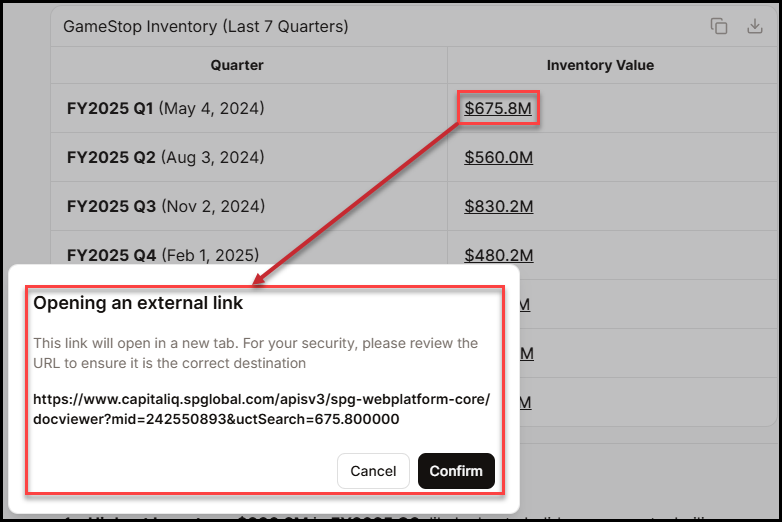
You can also test with tabular data by entering GME inventory last 7 quarters and clicking through the results.