Claude Remote MCP Integration
These instructions walk you through the steps required to add the LLM-Ready API remote MCP server to Claude (opens in a new tab).
Important notes
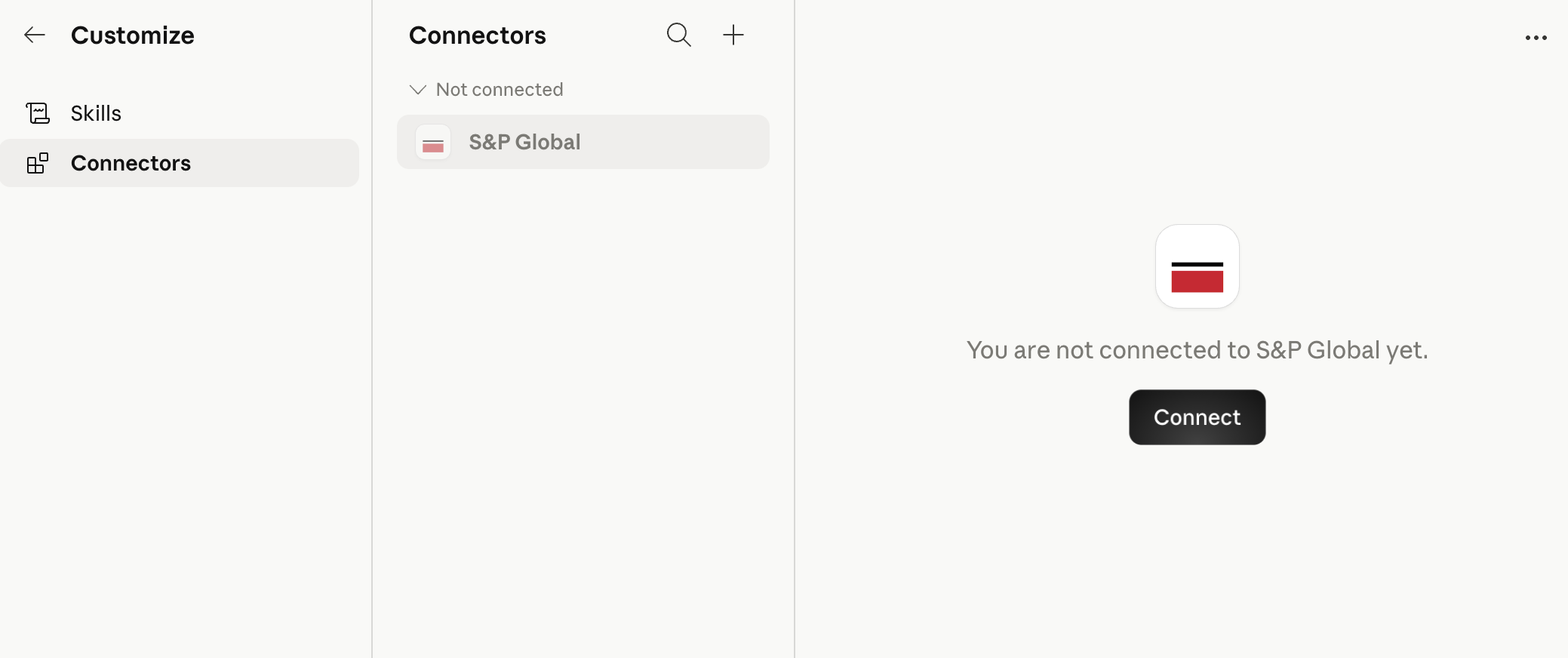
- For recurring users, make sure to click the 'Connect' button and verify the connection is active.
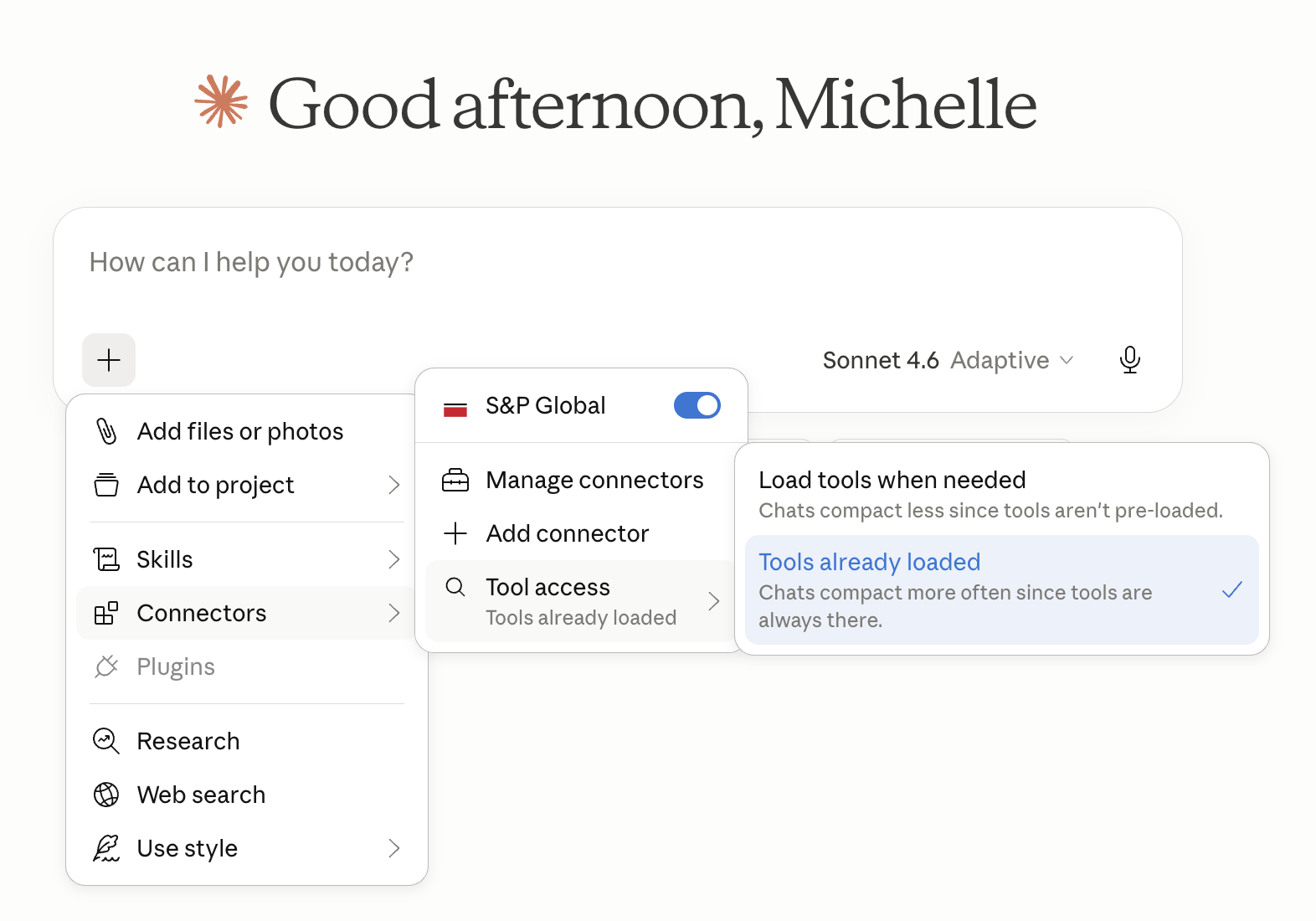
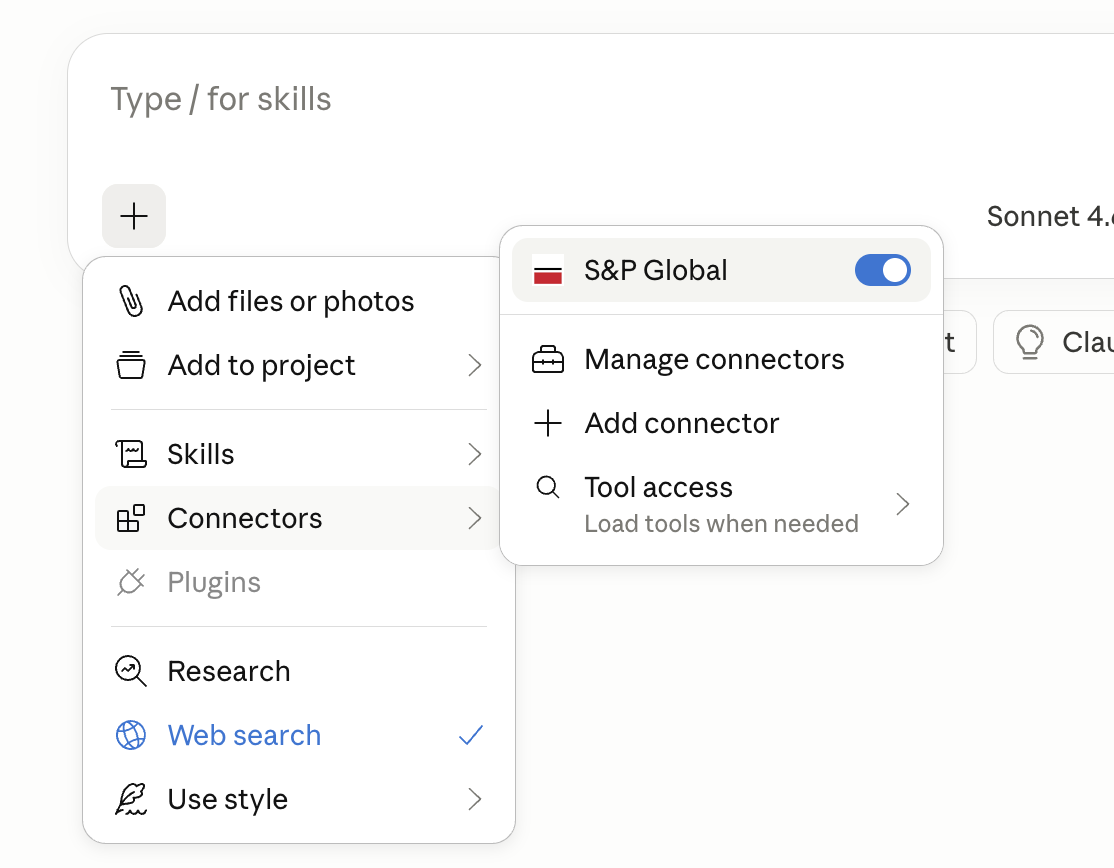
- For best performance, go to Connectors > Tool access and select Tools already loaded.
Adding the remote MCP server to Claude
Below are the steps required to add the LLM-Ready API remote MCP server to Claude (opens in a new tab) or Claude Desktop (opens in a new tab).
Important note
You must be a Claude team owner for your organization to add a new connector.
These instructions apply to team owners adding a connector to their team's account for the first time.
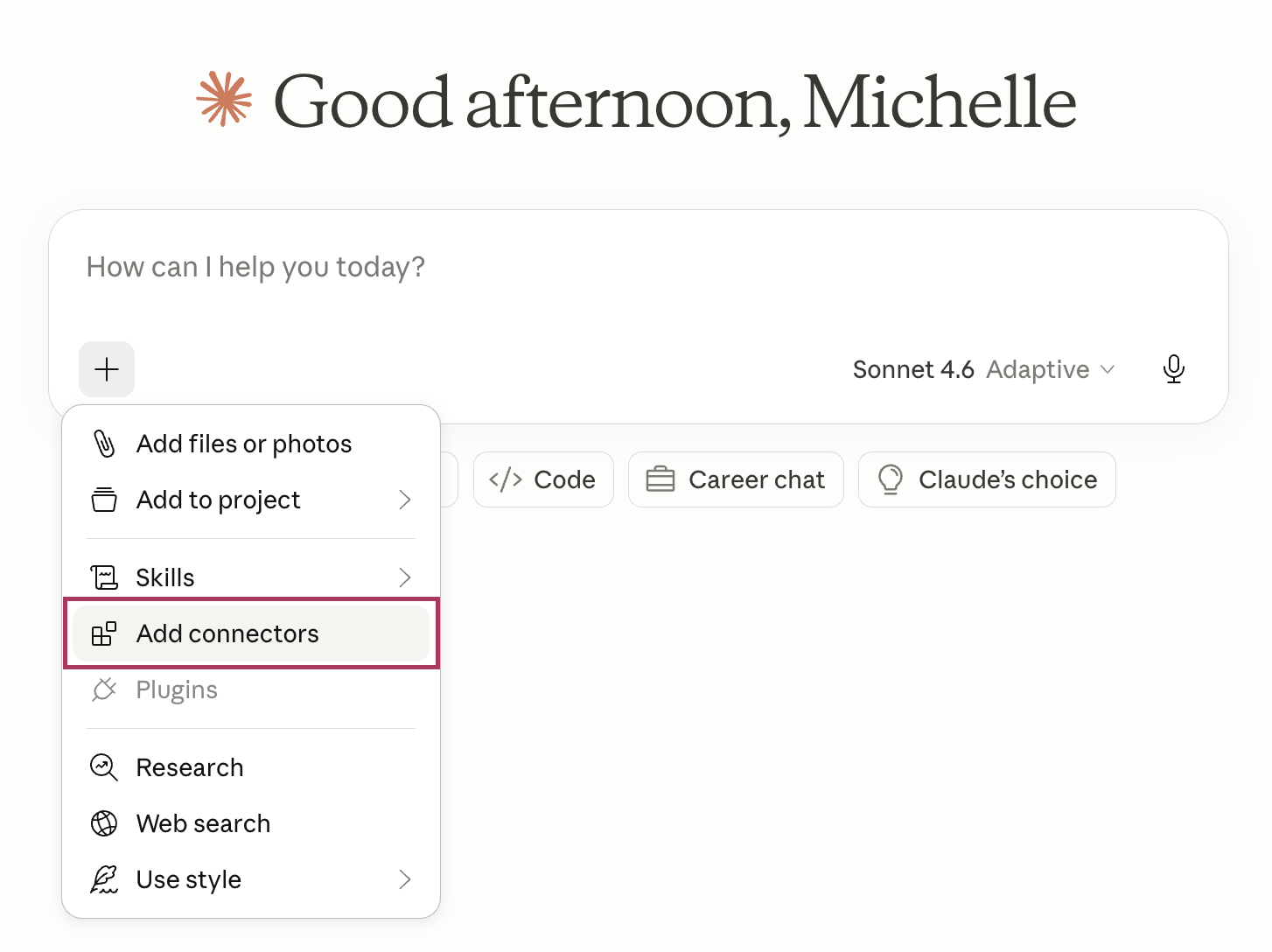
- Open the “Add files, connectors, and more” icon on the Claude Desktop homepage and click “Add connectors”.
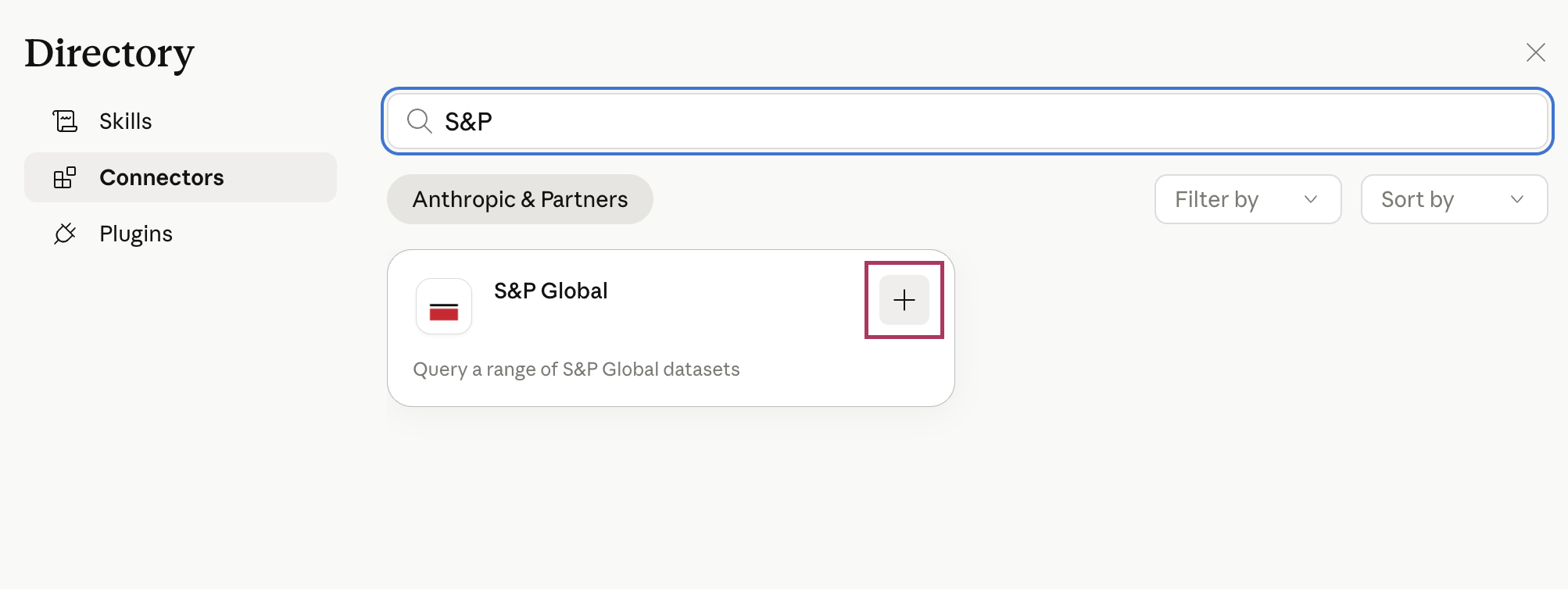
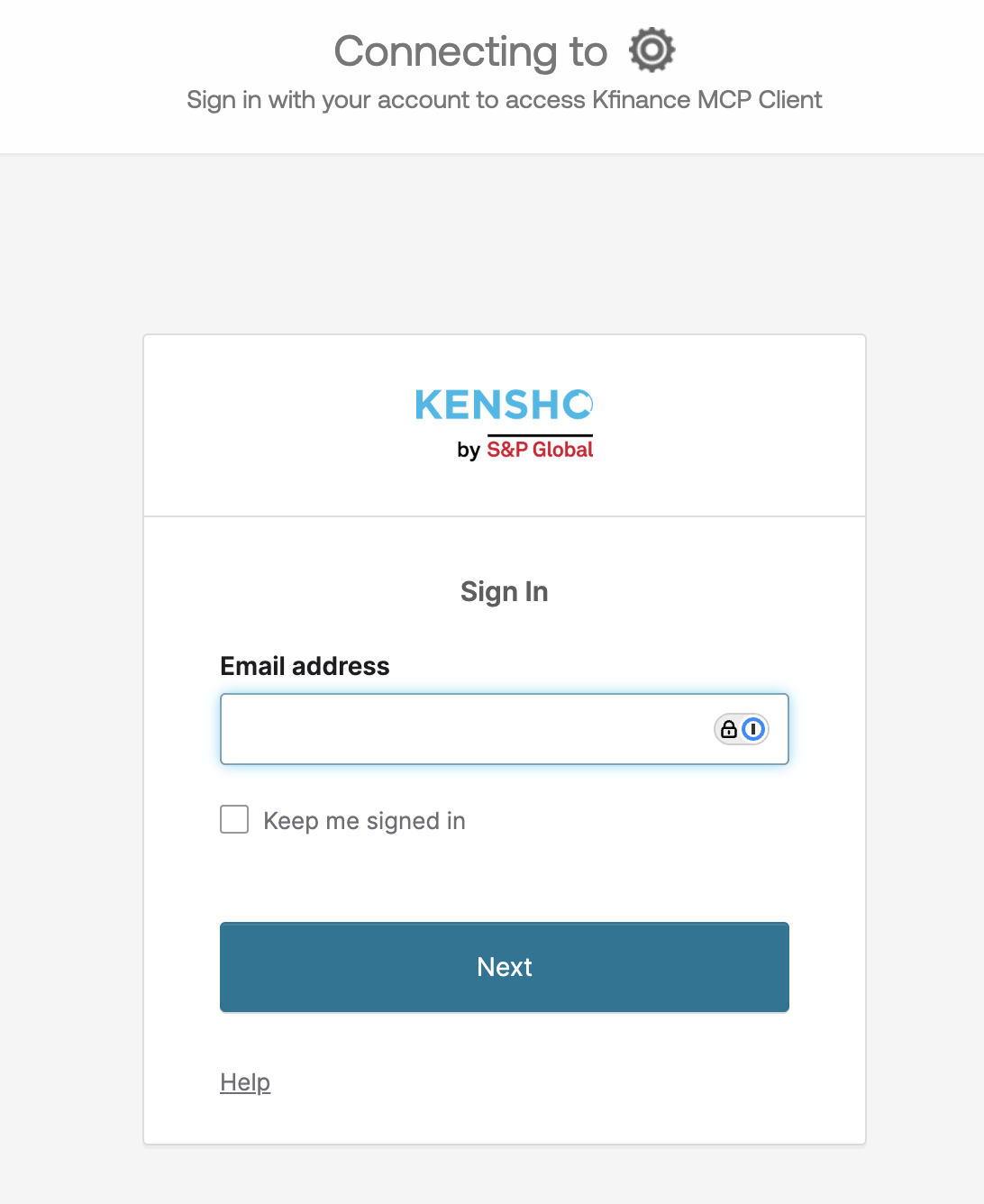
- Search for the “S&P Global” connector and click connect. This will bring you through an Okta browser login flow.
- Log in with your Kensho Okta credentials, sent via email when you sign up for a trial or account. Completing the Okta sign-in will redirect you back to Claude Desktop.
- The S&P Global connector will be available under "Connectors", and can now be utilized in your chats with Claude.
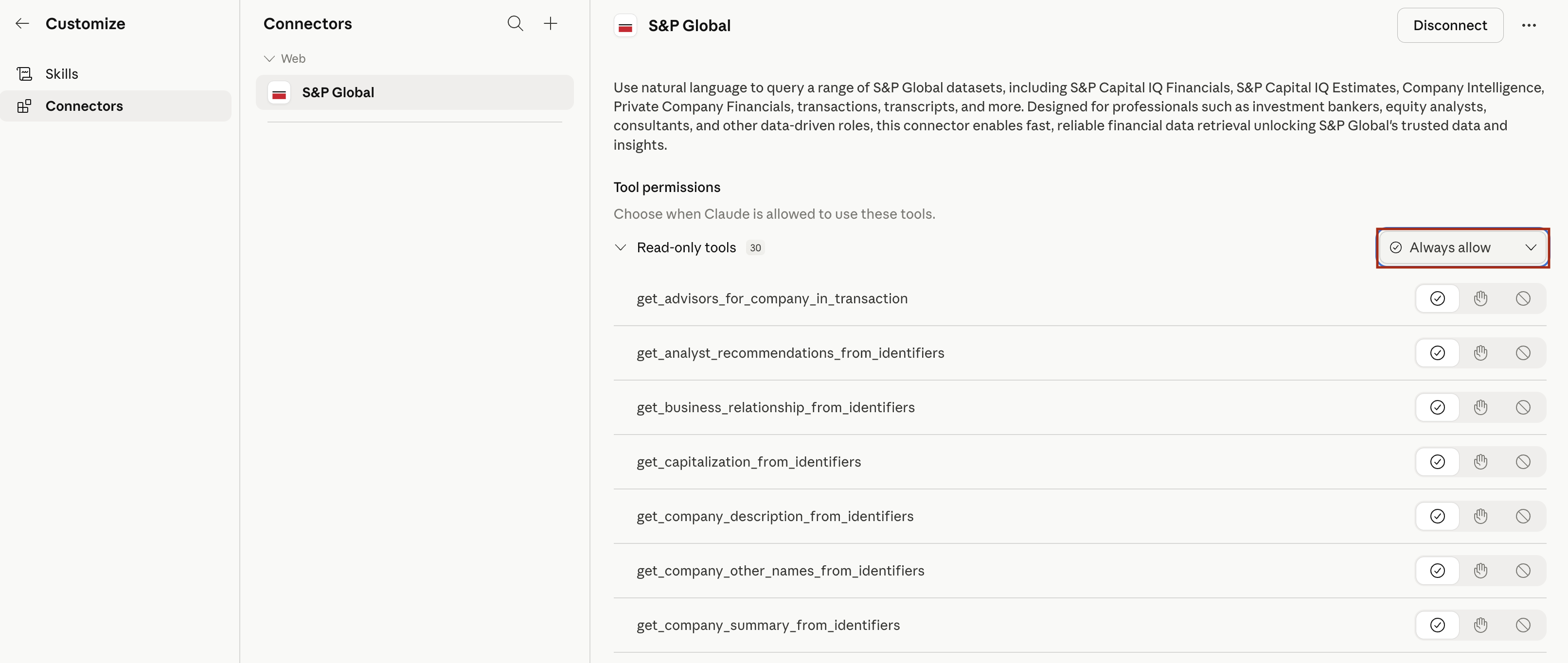
- We recommend customize the connector to leave all tools on unless you want to isolate select tools.
Claude Local MCP Integration
For information on setting up LLM-Ready API MCP server locally to Claude, please refer to the Local MCP Integration.