ChatGPT Remote MCP Integration (Beta)
These instructions walk you through the steps required to add the LLM-Ready API remote MCP server to ChatGPT (opens in a new tab).
Custom MCP servers are currently limited to Plus, Pro, Business, Enterprise, and Education accounts. In order to add an MCP server, for example to a Business account, you need to be the administrator of the account. But once added, all members of the account can use the server.
Setup
Step 1: Activate Developer Mode
Adding MCP servers to ChatGPT requires enabling Developer Mode (opens in a new tab), which only the account administrator can activate.
To enable Developer Mode, go to the Advanced Apps & Connectors (opens in a new tab) settings page. (In case the link does not work, start on the Apps & Connectors (opens in a new tab) settings page and scroll all the way to the bottom and select Advanced Settings).
Once on the page, make sure that Developer mode is enabled.
Important Note
ChatGPT navigation and settings descriptions are subject to change. These instructions were last updated 11.7.2025. If you are unable to access the required settings, please contact your S&P account rep for troubleshooting assistance.
Step 2: Add the LLM-Ready API MCP server
Navigate back to the Apps & Connectors (opens in a new tab) settings page and click the Create button.
In the form, you can choose a name and description.
Set the MCP Server url to https://kfinance.kensho.com/integrations/mcp (opens in a new tab) and Authentication to OAuth.
Once you have filled in all of the information, click Create.
Using the MCP Server
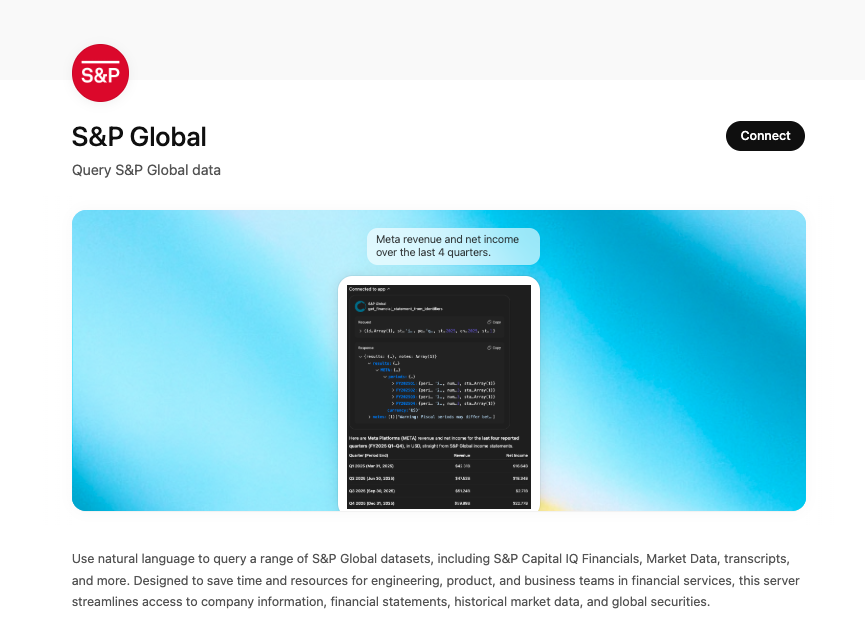
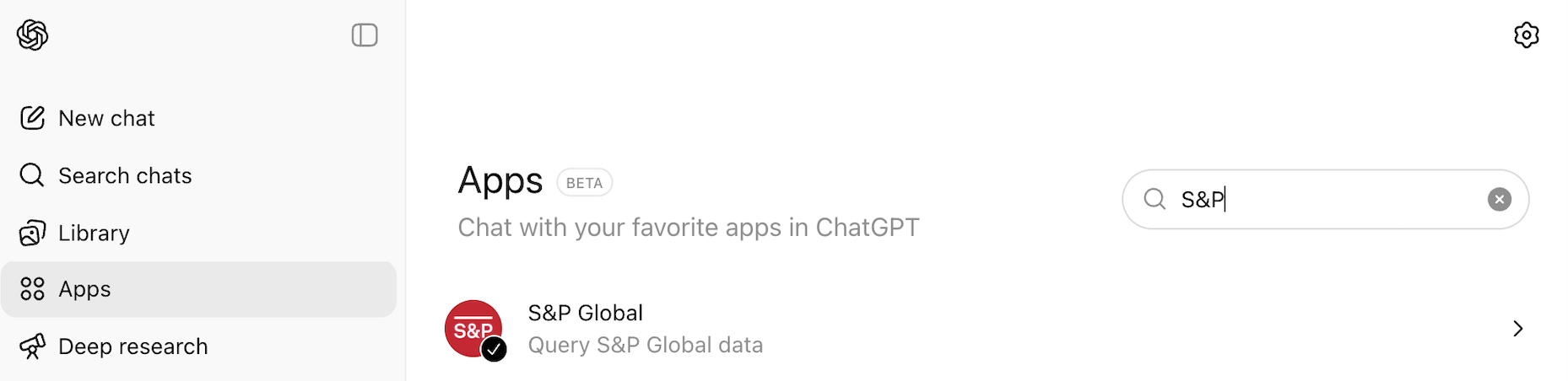
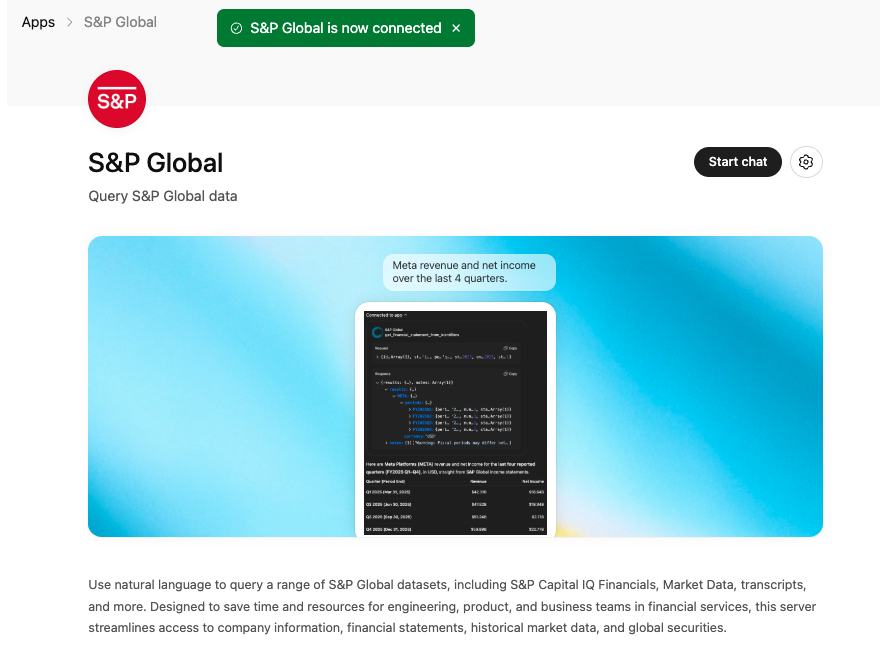
Once the server has been created, it will be visible under Apps & Connectors (opens in a new tab).
If you are connected, it should be at the top of the page.
If you are not connected, it will probably be under Connectors.
Click on the connector. This will take you to a page with more information about the connector.
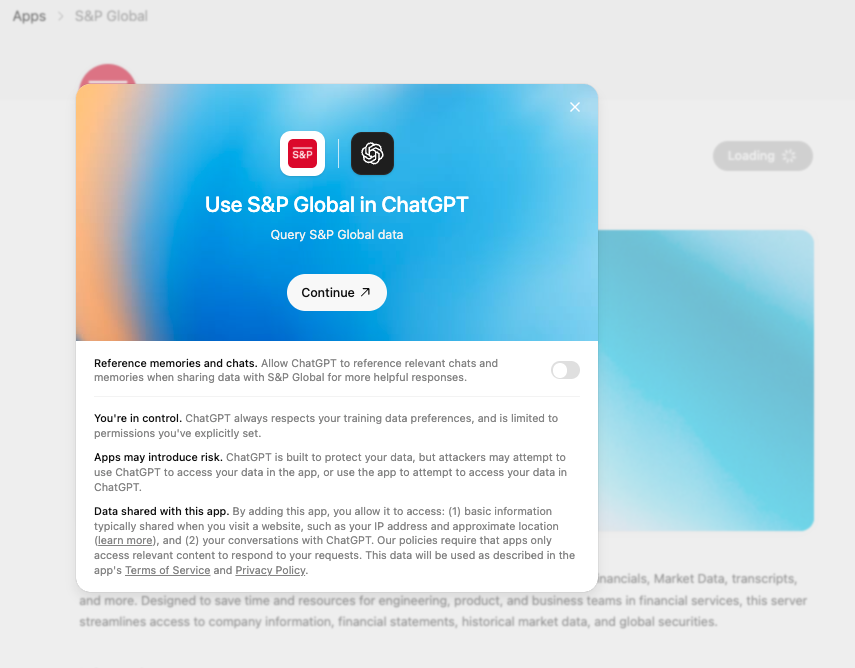
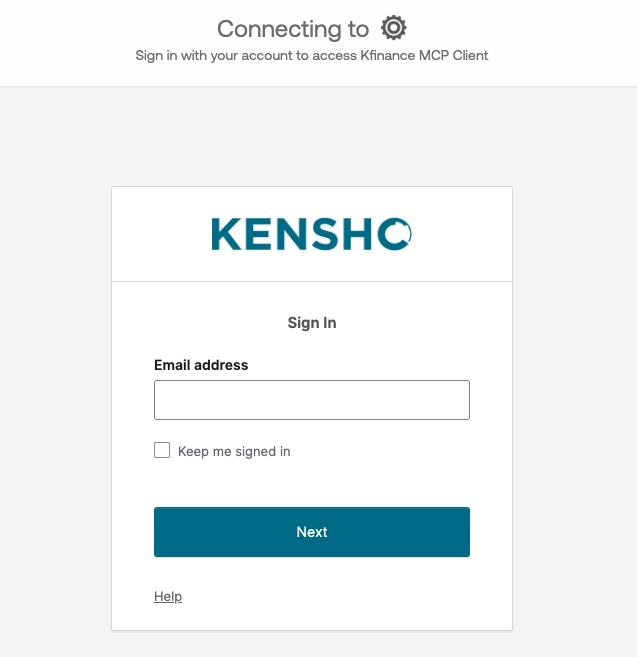
To make requests, ensure that the status says Connected. If it doesn't, click Connect.
Go back to the ChatGPT (opens in a new tab) landing page.
Before entering a query, click the + sign, then select More and click on the S&P MCP connector.
If you do that, the connector should show up next to the + sign.
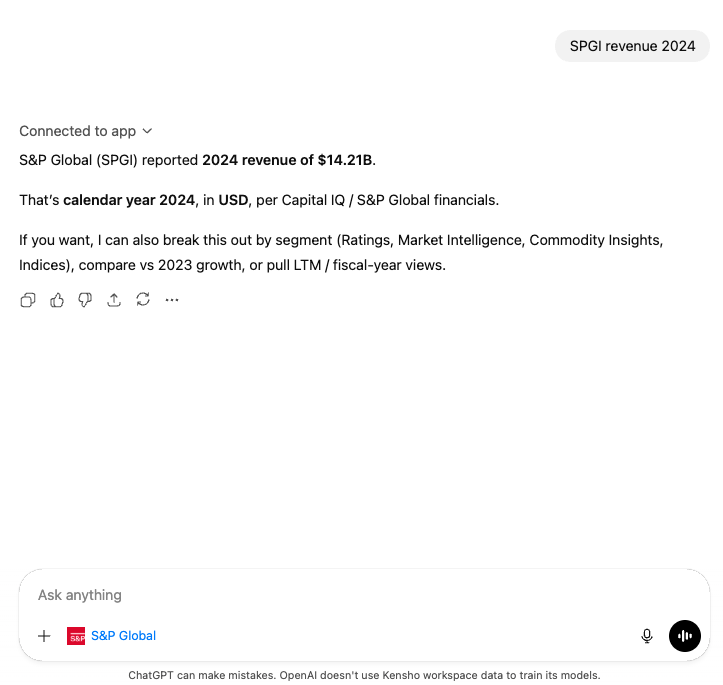
You're now ready to use the MCP server. Try it out with a query, for example SPGI revenue 2024. For more example queries, please refer to Sample Questions.
ChatGPT should identify that the LLM-ready API MCP server can provide data for the query. But before actually making the request, ChatGPT will ask you for permission to fetch data.
Select the Remember for this conversation checkbox and click Confirm.
ChatGPT should now formulate an answer based on the data that it fetched from S&P via the MCP server.