Microsoft Copilot Connector
These instructions walk you through enabling the S&P Global partner connector (opens in a new tab) in Microsoft 365 Copilot. Once enabled, the LLM-Ready API is available as a data source directly within your Copilot Chat experience.
Setup
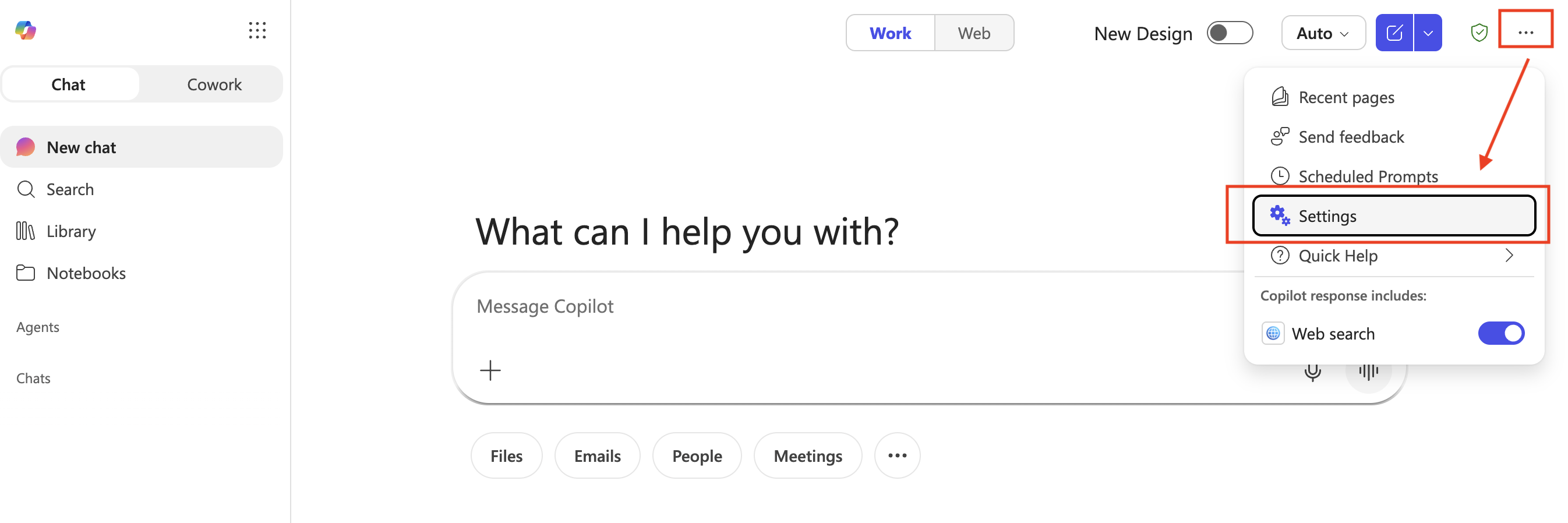
Step 1: Open Copilot Settings
In Microsoft 365 Copilot, open the settings menu.
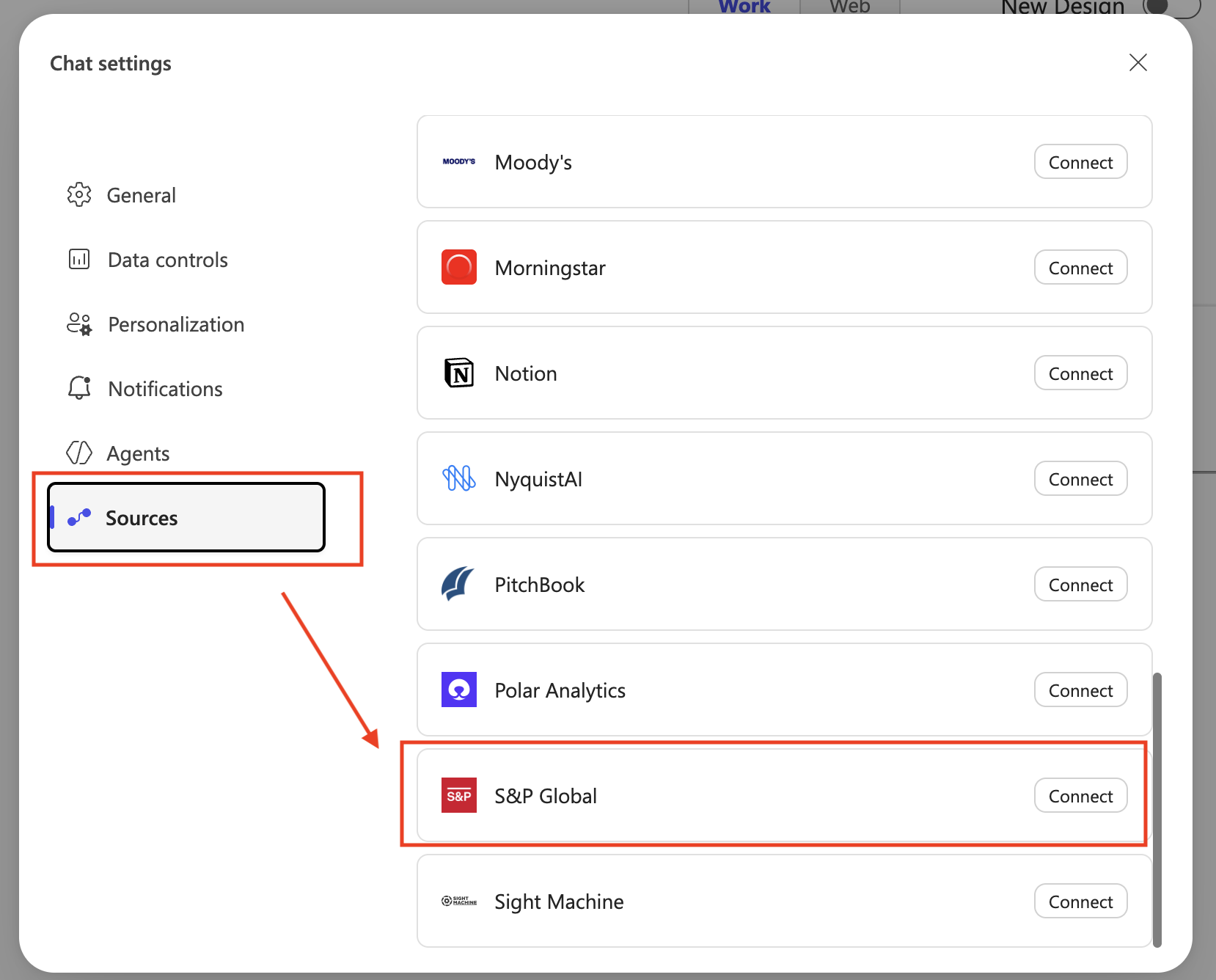
Step 2: Find the S&P Global Connector
In the sources list, find the S&P Global connector. This is a built-in partner connector available in the Copilot connectors gallery (opens in a new tab).
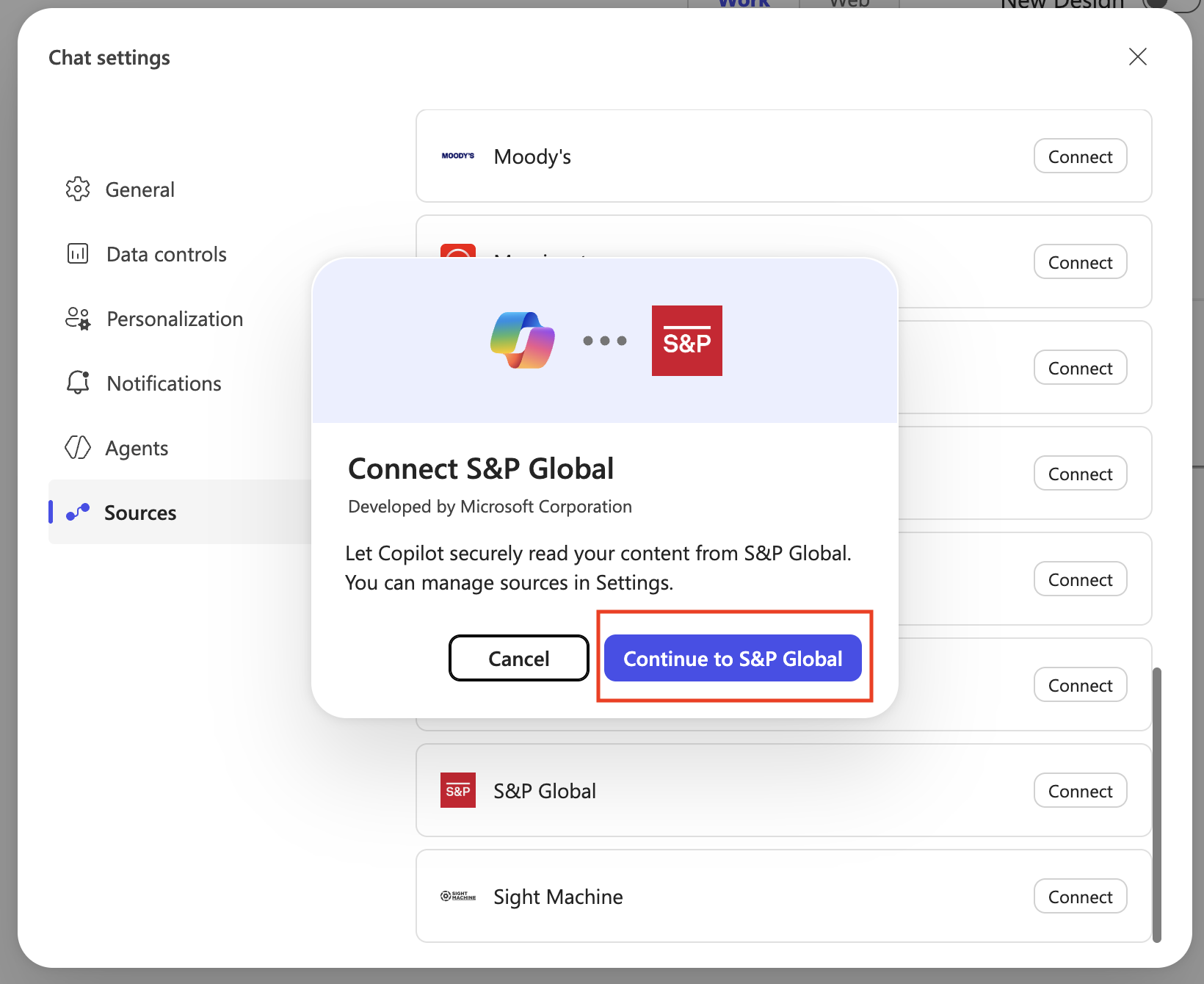
Step 3: Connect the Source
Select the S&P Global connector and follow the prompts to authenticate. You will be asked to log in with your Kensho Okta credentials, which were sent via email when you signed up for a trial or account.
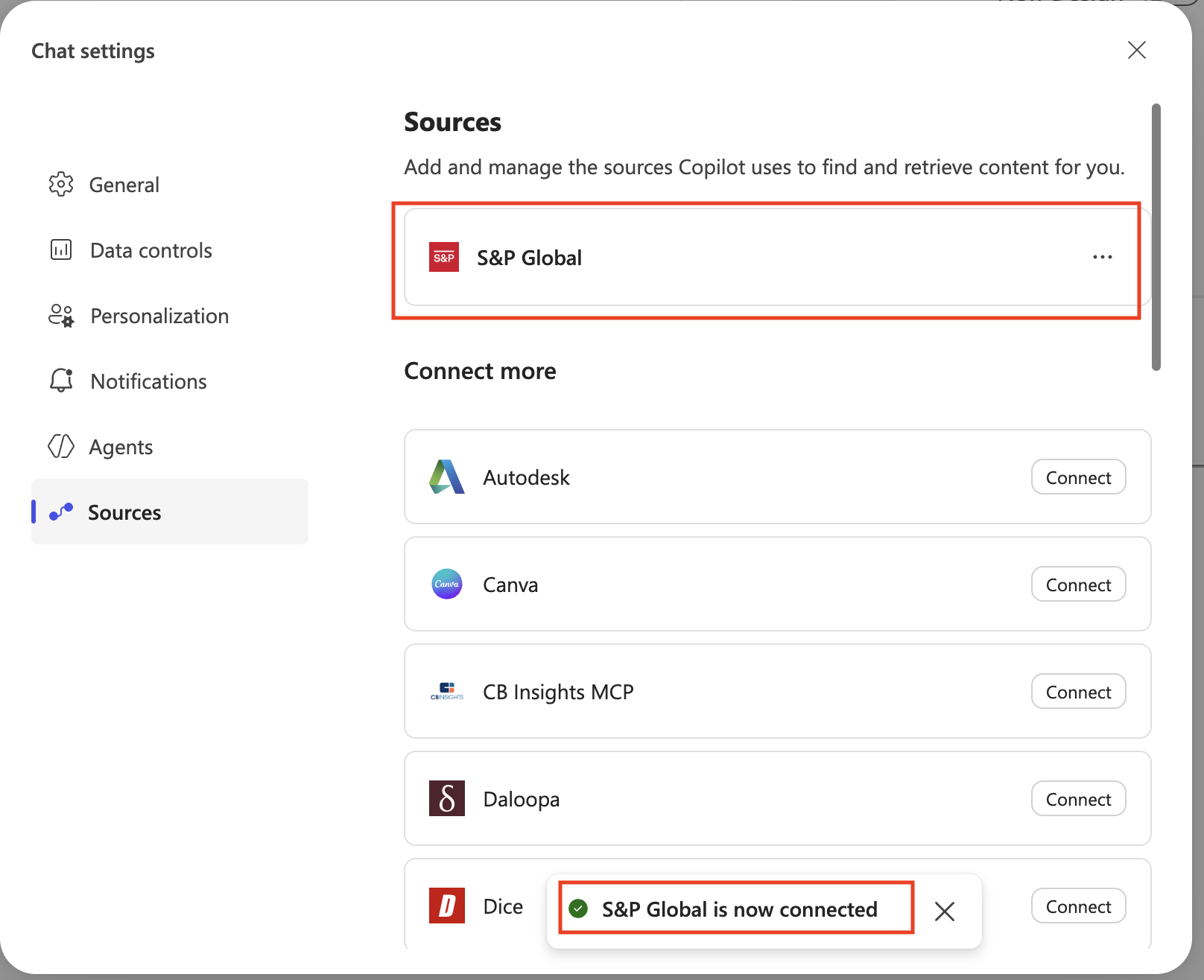
Step 4: Confirm Connection
Once authenticated, you should see the S&P Global source listed as connected.
Step 5: Test the Connection
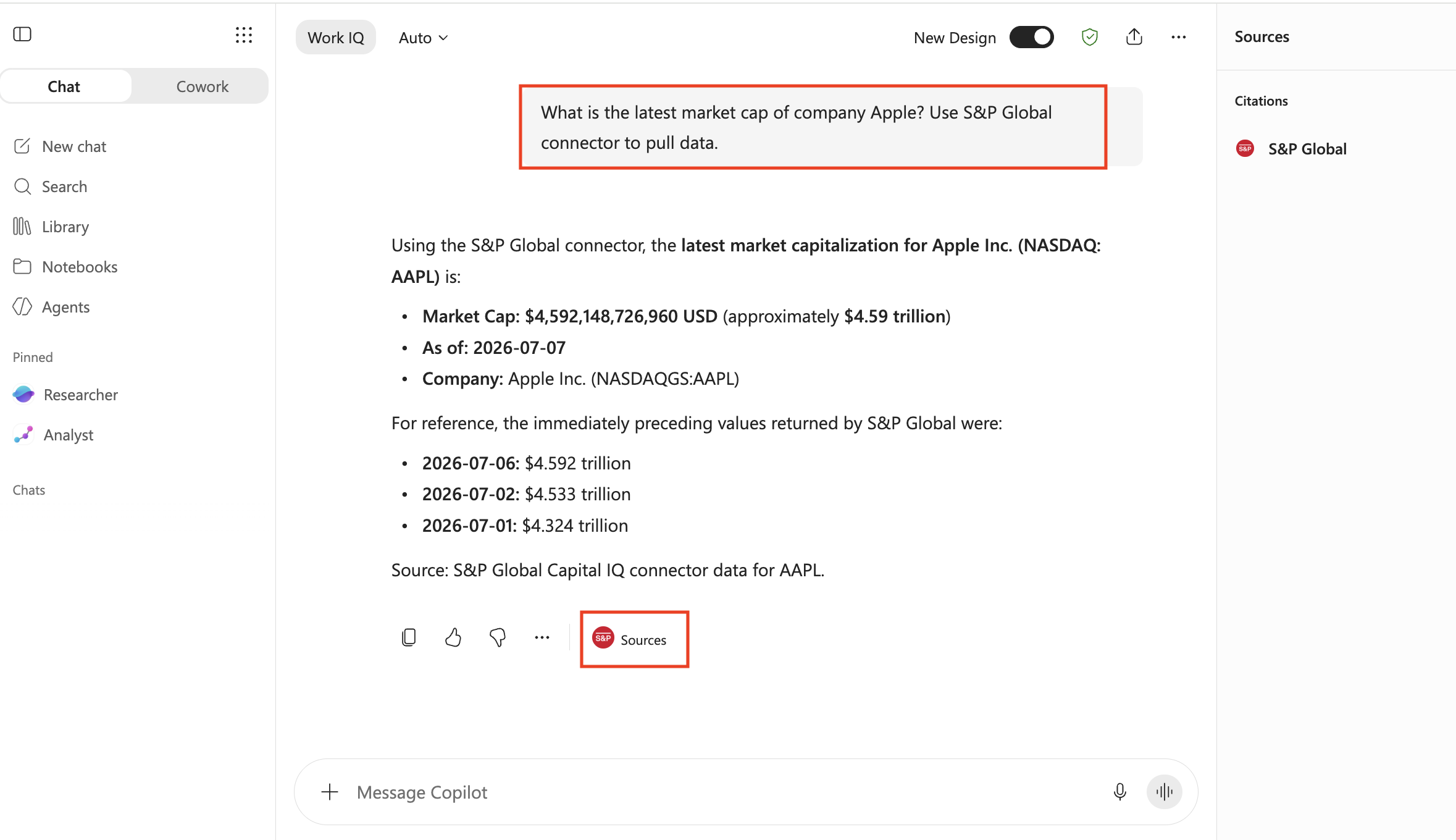
Return to your Copilot chat and try asking a question like "What is the latest market cap of company Apple? Use S&P Global connector to pull data.". Copilot will retrieve data from the LLM-Ready API via the connector.
For building a dedicated agent with more control over behavior and deployment, see Copilot Studio.