Gemini Enterprise Integration
These instructions walk you through configuring the S&P Global Adaptive Retrieval MCP connector in Gemini Enterprise in Google Cloud (opens in a new tab). The Adaptive Retrieval connector is available as a third-party MCP data store in the Gemini Enterprise connectors gallery (opens in a new tab).
Before you begin
This guide assumes your GCP project already has Gemini Enterprise enabled and the required IAM roles assigned. If you are setting up Gemini Enterprise for the first time, or need to verify prerequisites such as the Discovery Engine Editor role and billing configuration, see the Google Cloud setup guide: Set up an S&P Global - Adaptive Retrieval data store (opens in a new tab).
Part 1: Admin Setup (One-Time)
Step 1: Create a New Data Store
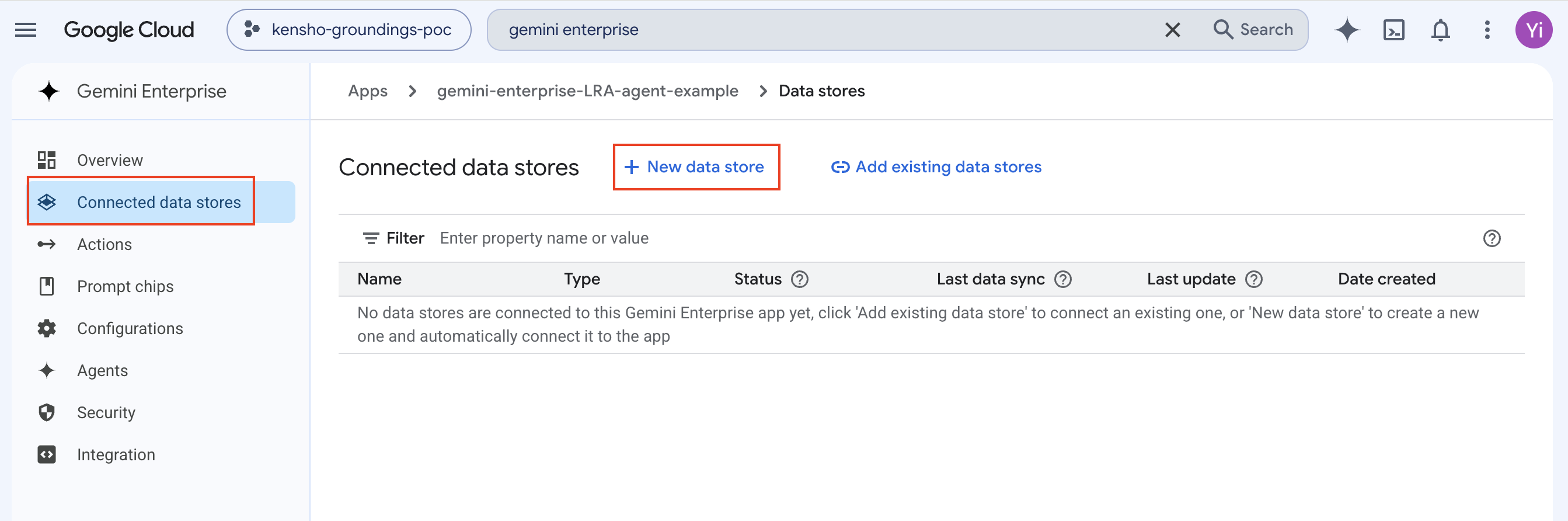
Open the Gemini Enterprise app. Navigate to Connected data stores in the left sidebar, then click + New data store.
Step 2: Add the Adaptive Retrieval Data Source
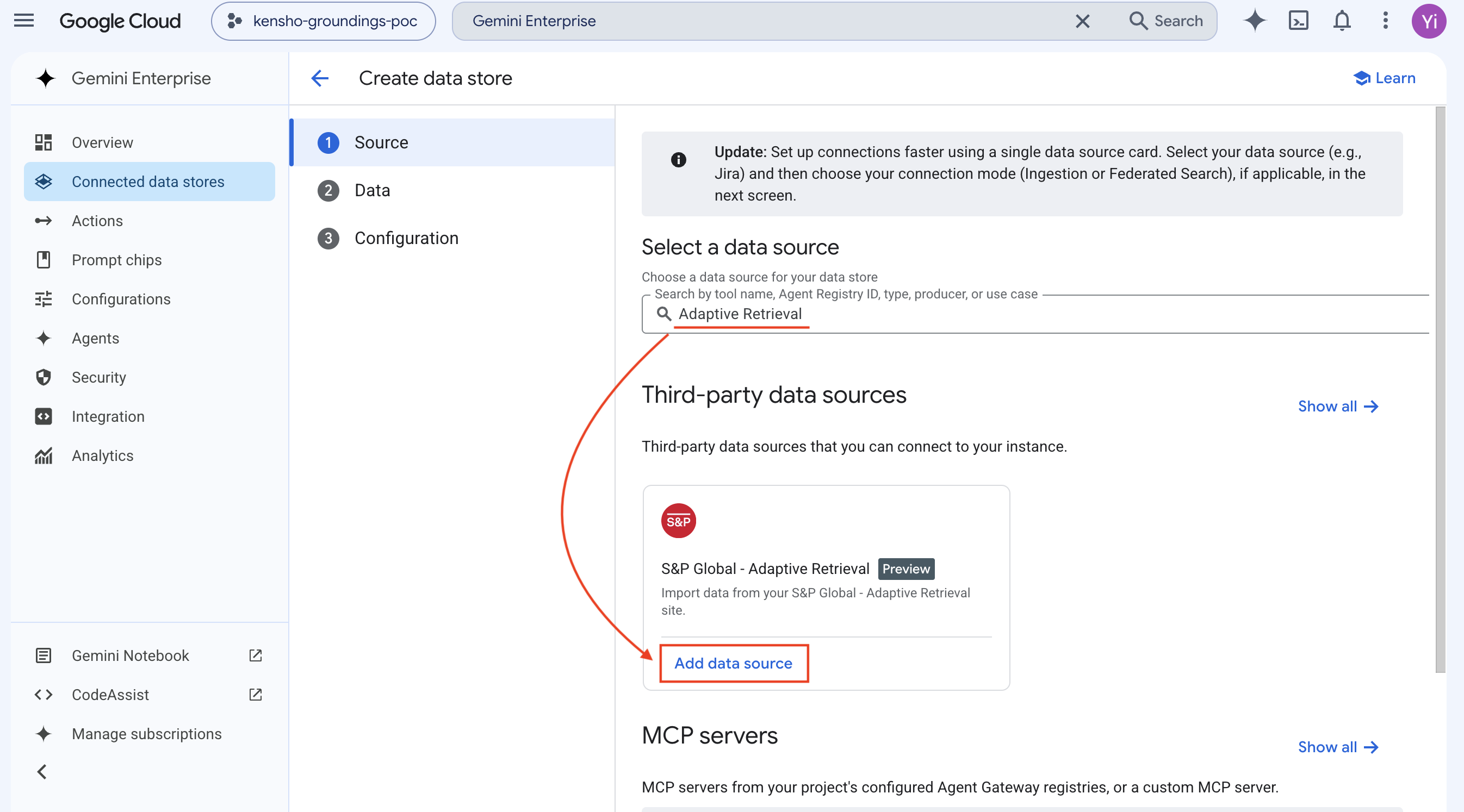
Search for "Adaptive Retrieval" under Third-party data sources. Locate the S&P Global - Adaptive Retrieval card and click Add data source.
Step 3: Select the Agent Entity
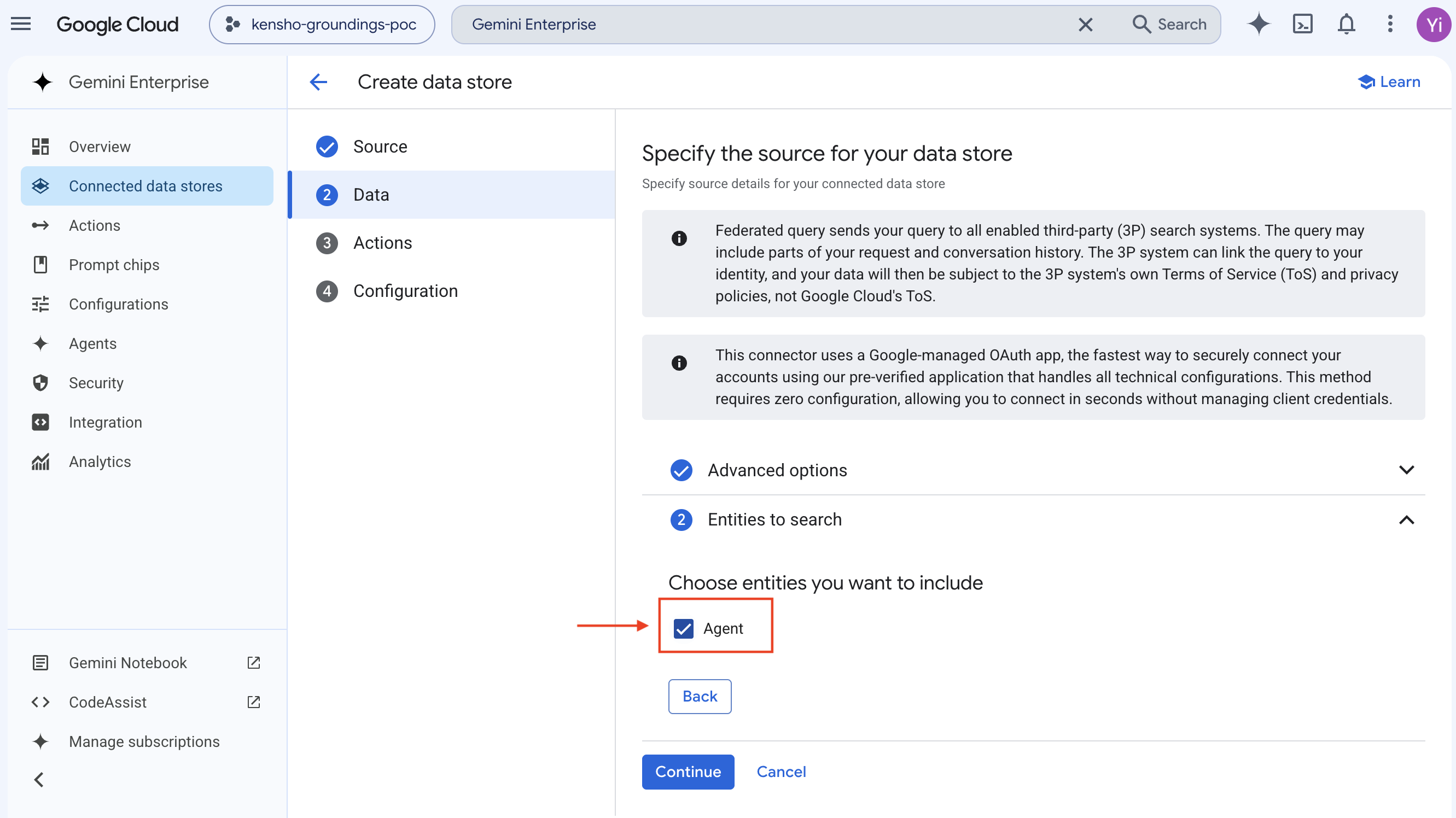
Expand the Entities to search section and enable the Agent checkbox, then click Continue.
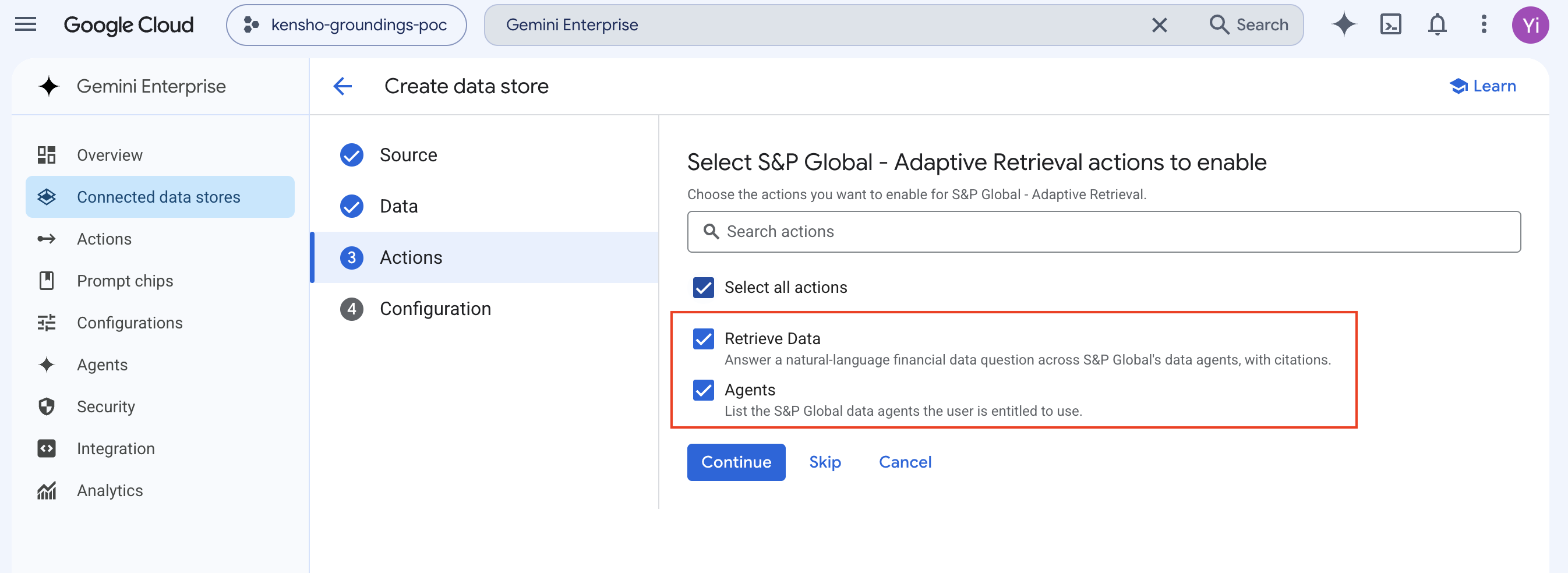
Step 4: Select All Actions
Check Select all actions to enable all available Adaptive Retrieval actions, then click Continue.
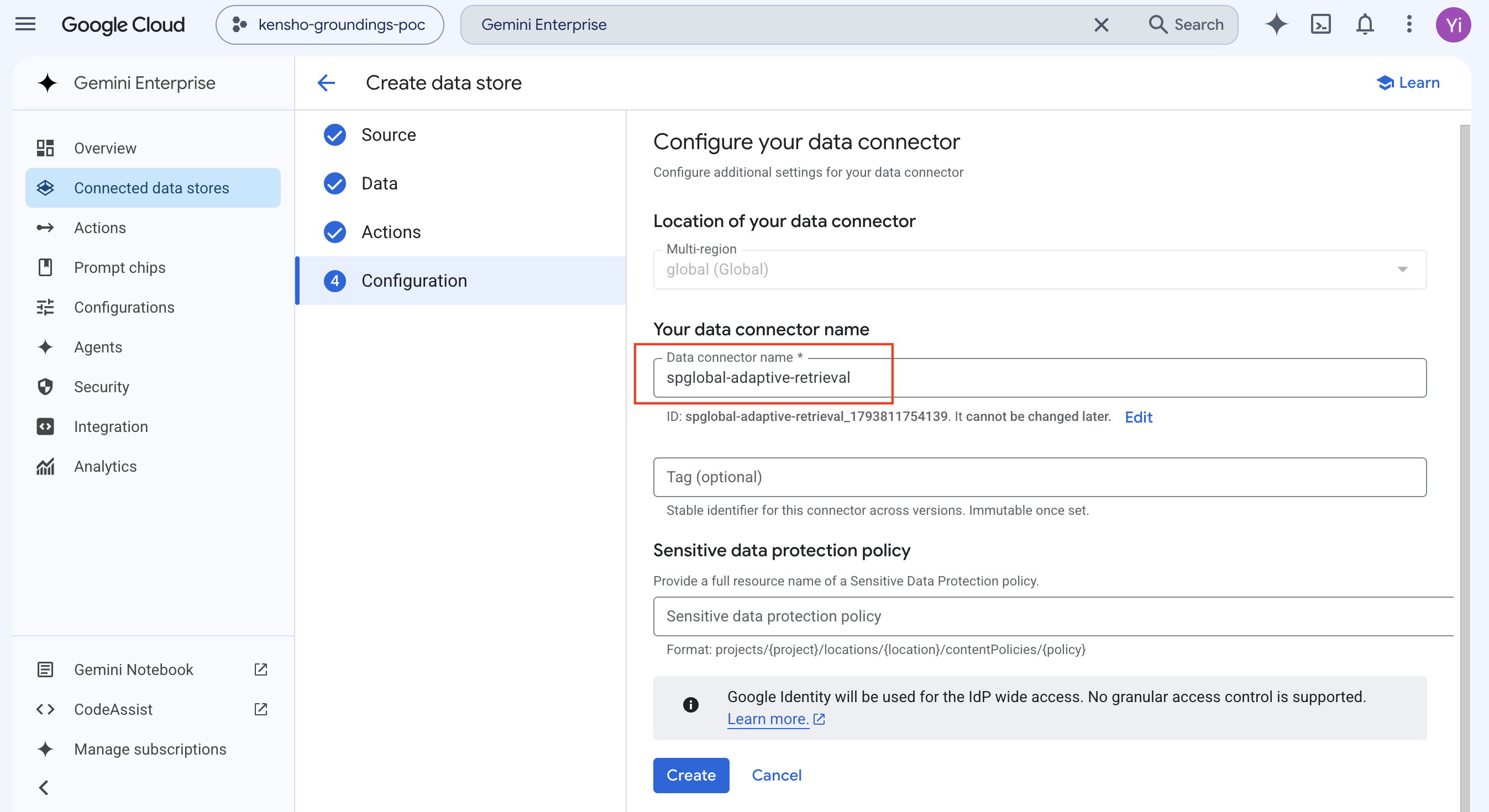
Step 5: Name and Create the Connector
Specify a data connector name (e.g., spglobal-adaptive-retrieval) and click Create.
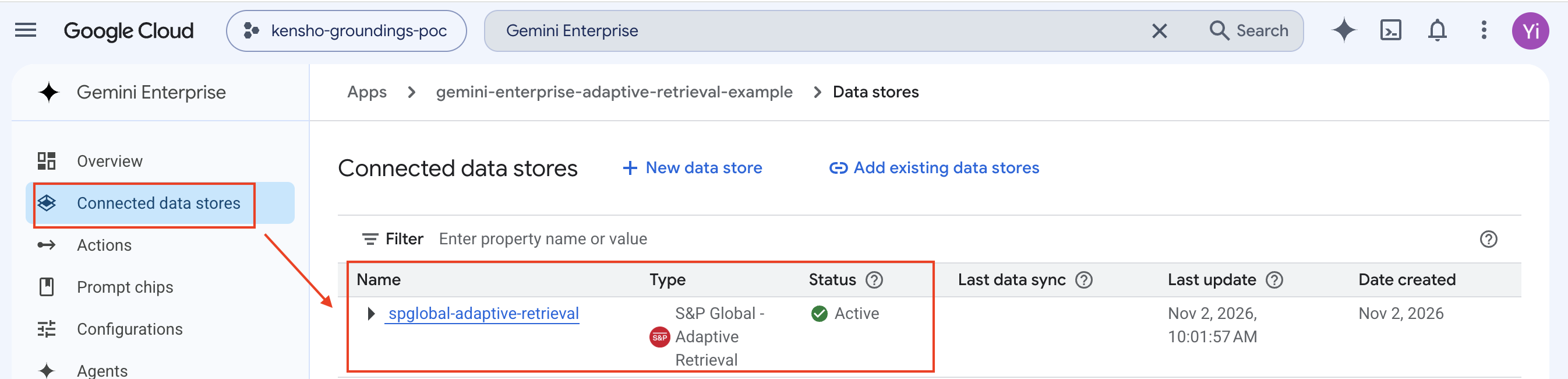
Step 6: Confirm Active Status
Wait for creation to complete. The data store should appear in the list with status Active.
Part 2: End-User Experience
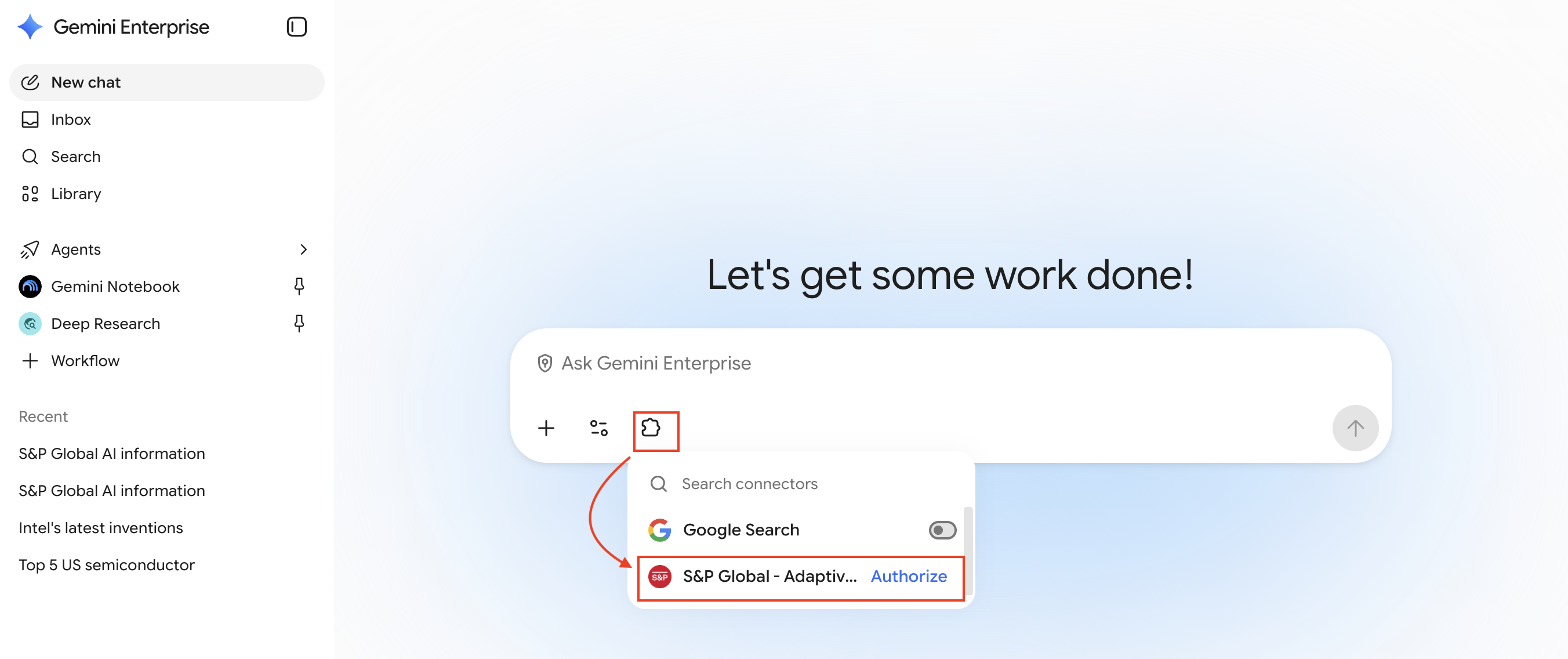
Step 7: Authorize the Connector
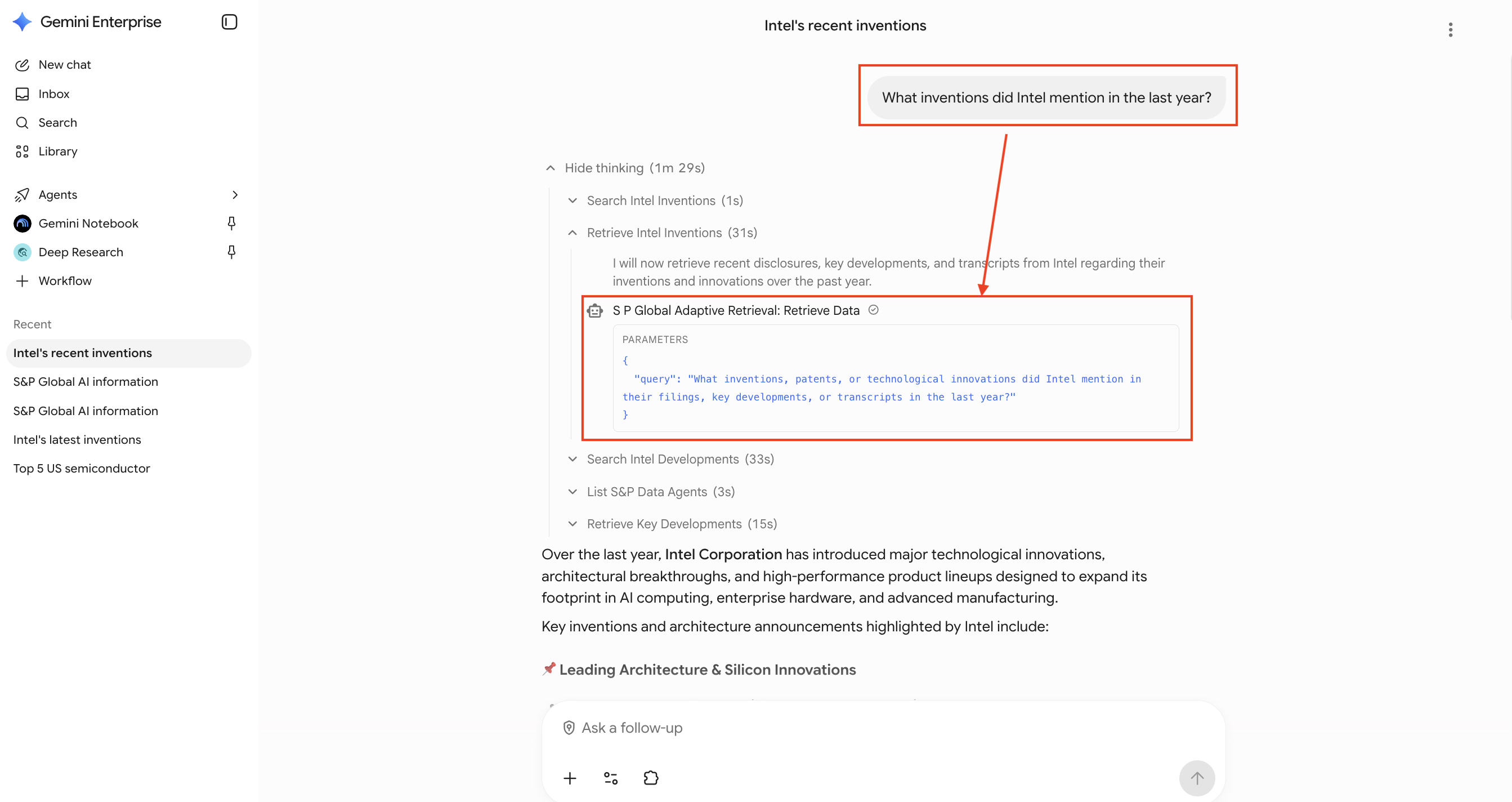
Open Gemini Enterprise. The S&P Global Adaptive Retrieval connector appears below the chat input. Click Authorize and authenticate with your S&P Global Okta credentials when redirected.
Step 8: Test with a Prompt
Start asking financial questions. Adaptive Retrieval dynamically routes your query across S&P Global data sources and assembles cited results automatically.