Model Context Protocol (MCP)
Overview
To make Kensho Grounding accessible within modern AI clients and agentic frameworks, Grounding supports integration via Model Context Protocol (opens in a new tab) (MCP), which standardizes agentic communication.
Prerequisites
Authentication: You must have OAuth credentials set up with Kensho.
MCP Client Entry
Find the Grounding MCP server information below:
{
    "mcpServers": {
        "kensho-server": {
            "type": "streamable-http",
            "url": "https://grounding-alpha.preview.kensho.com/integrations/mcp"
        }
    }
}
S&P Global Authentication (Energy AIRD Agent only)
Note
This section only applies to users with access to the Energy AIRD dataset. Most users can skip this section.
The Energy AIRD agent requires an S&P Global (SPGI) access token in addition to the Kensho one used in the Authorization header. Without this token, requests will still work but the Energy AIRD agent will not be available.
To obtain a token, follow the S&P Global token instructions on the API Guide page. Then include the token as the X-SPGI-Access-Token header in your MCP client configuration.
Claude Desktop / Claude Code:
{
    "mcpServers": {
        "kensho-server": {
            "type": "streamable-http",
            "url": "https://grounding-alpha.preview.kensho.com/integrations/mcp",
            "headers": {
                "X-SPGI-Access-Token": "<your-S&P-token>"
            }
        }
    }
}
Manual Usage
Calling the REST endpoint https://grounding-alpha.preview.kensho.com/api/v2/search with body:
{
   "query": "What is Apple's P/E Ratio?"
}
Is equivalent to calling the MCP endpoint https://grounding-alpha.preview.kensho.com/integrations/mcp with body:
{
   "jsonrpc": "2.0",
   "method": "tools/call",
   "params": {
       "name": "search",
       "arguments": {
           "query": "What is Apple's P/E Ratio?"
       }
   },
   "id": 1
}
Testing via MCP Inspector
For quick access, you can connect to the Grounding MCP server via MCP Inspector (opens in a new tab), the recommended tool from MCP itself.
Requirements
- OAuth Credentials — You will need your
CLIENT_ID - npx (opens in a new tab) — This allows you to start up your MCP Inspector Server
- Node.js version 22.7.5 or greater
Setup Instructions
- In a shell with npx installed and an internet connection, run the following command. This will open up your default browser with a UI:
npx @modelcontextprotocol/inspector- In the UI:
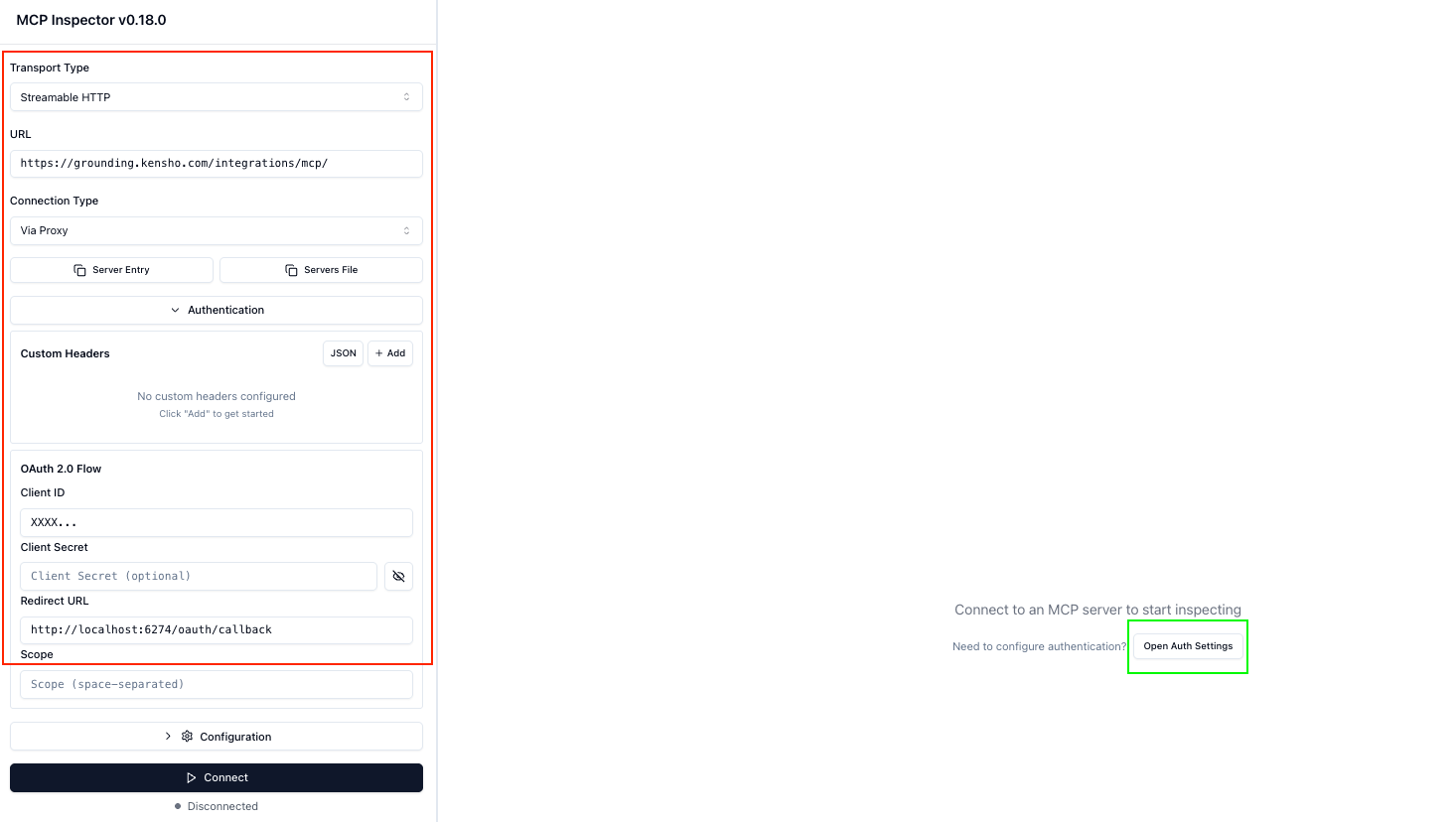
- Under Transport Type select Streamable HTTP
- Under the URL, paste
https://grounding-alpha.preview.kensho.com/integrations/mcp - Set Connect Type to Via Proxy from the dropdown
- Under Authentication, provide your CLIENT_ID
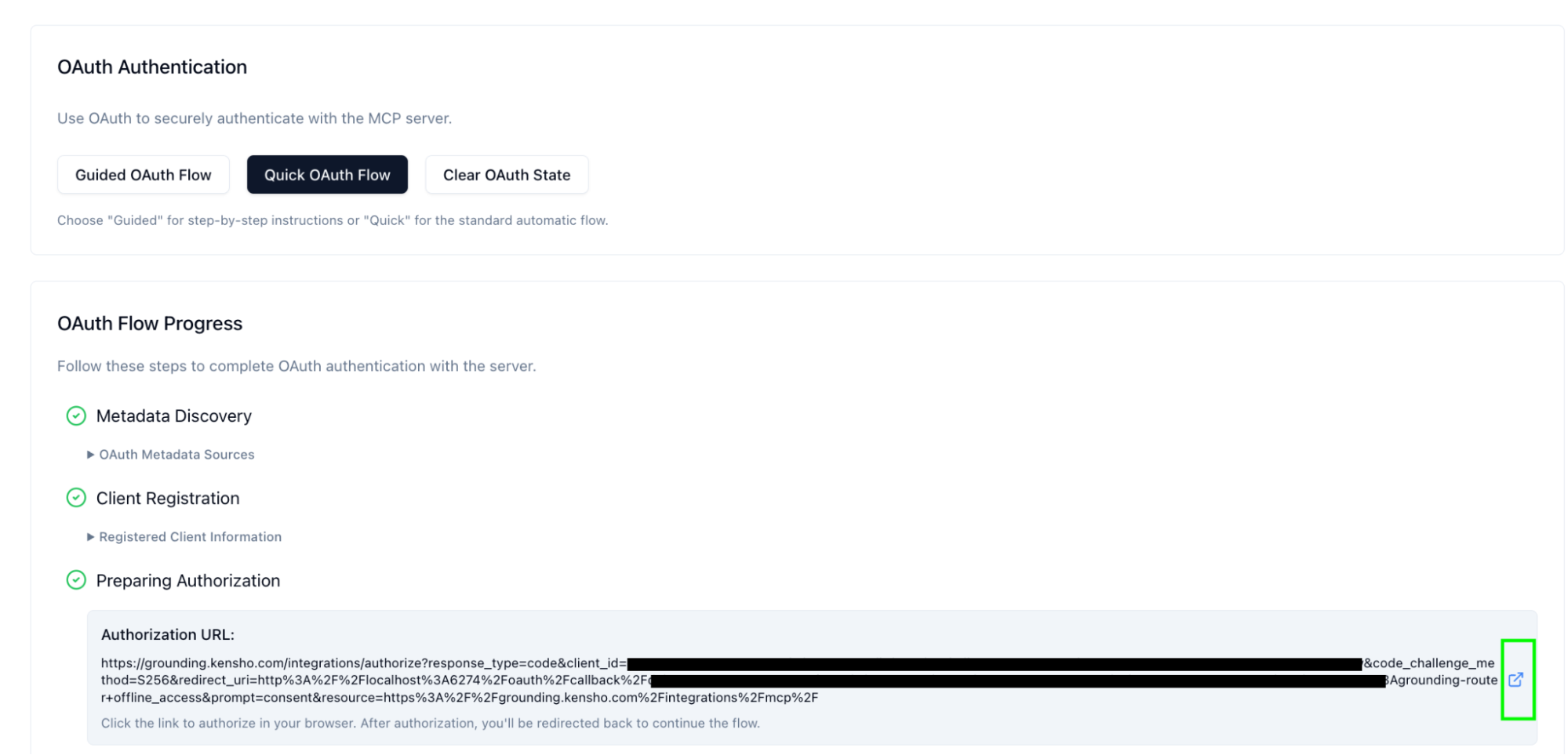
- Click on Open Auth Settings in the center of the UI (in green) and work through the Quick OAuth Flow. When you get to Preparing Authorization, make sure to click the button to take you to an external window for the Authorization URL.
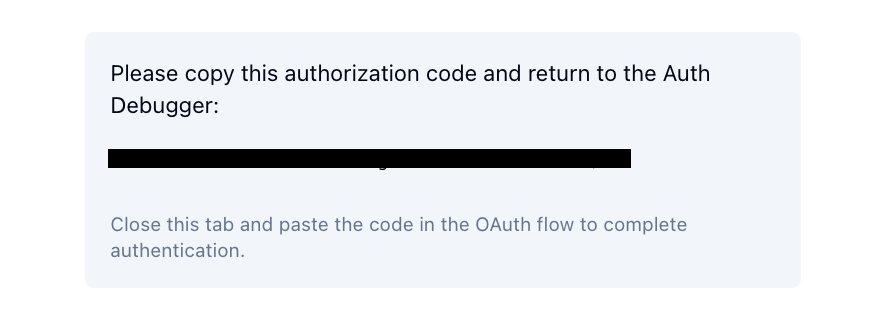
- Copy and paste the code from the external tab window.
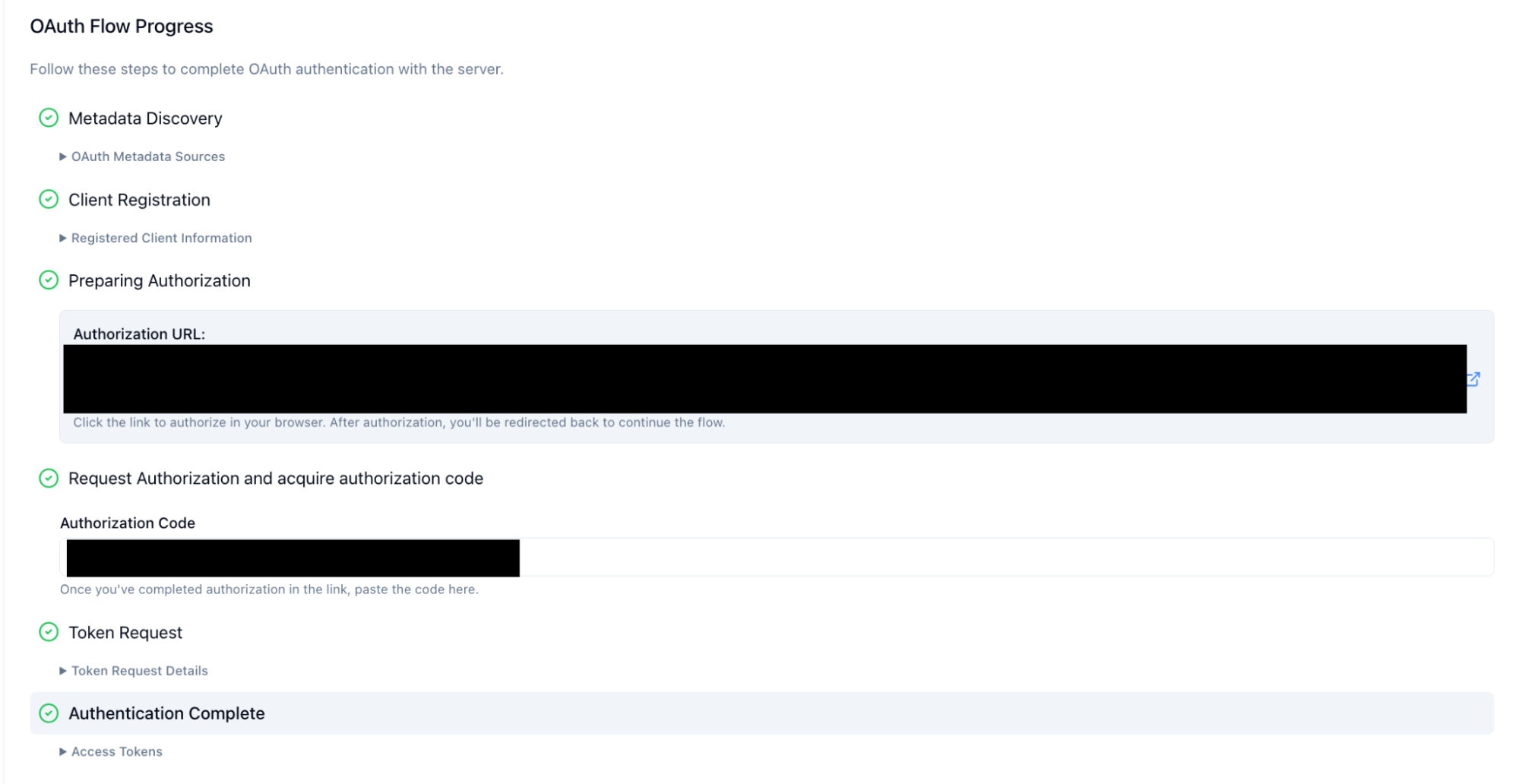
- Click through the rest of the flow. To confirm Auth is set up, it should show all green check marks and say Authentication Complete.
- Finally, hit the Connect button on the bottom left. You should see that your MCP Inspector is now connected and a list of dropdowns on the top, including Tools.
Usage
- Select Tools > List Tools.
-
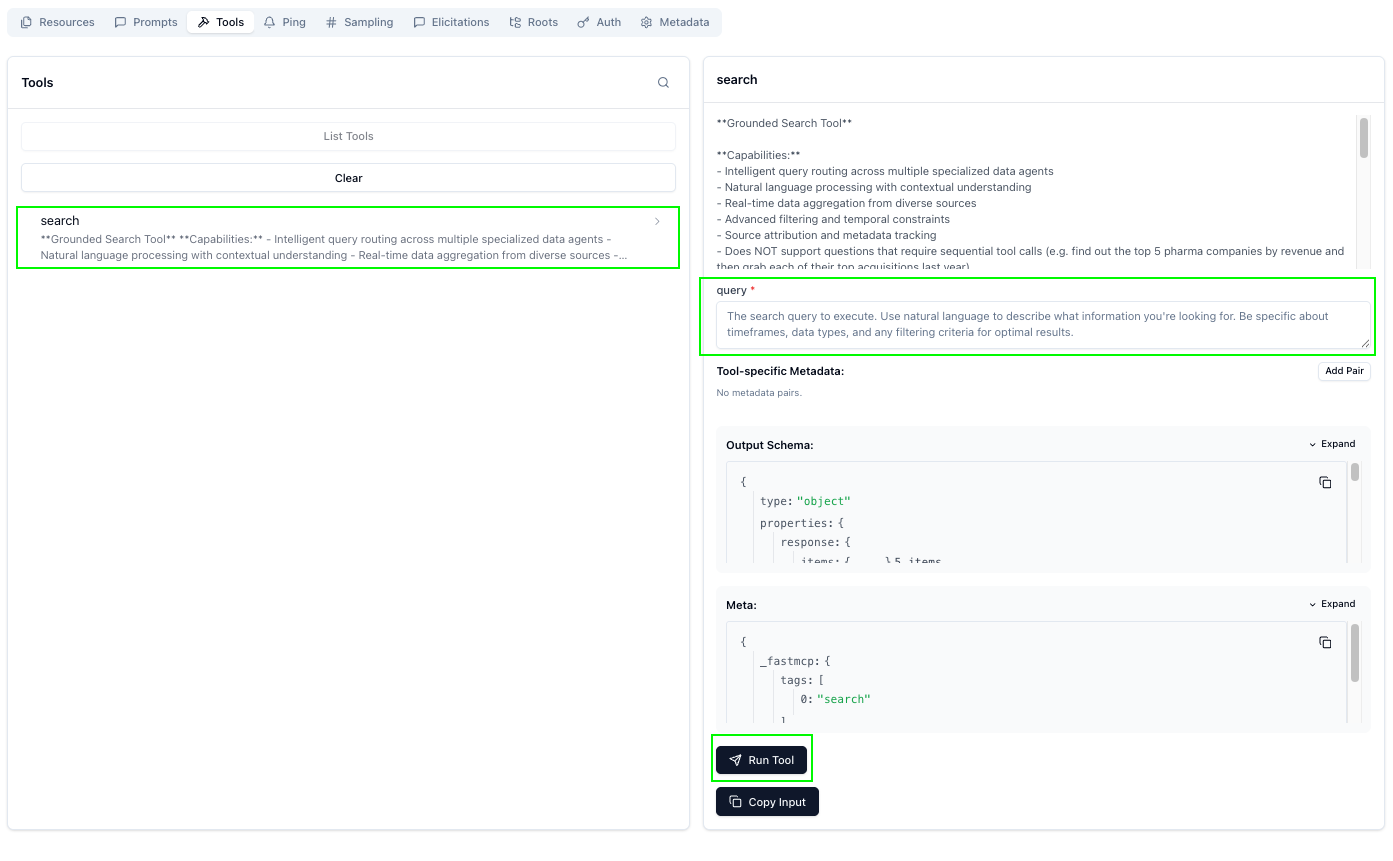
Click on search. You will be able to find the information about the tool and what it does under the search dropdown.
-
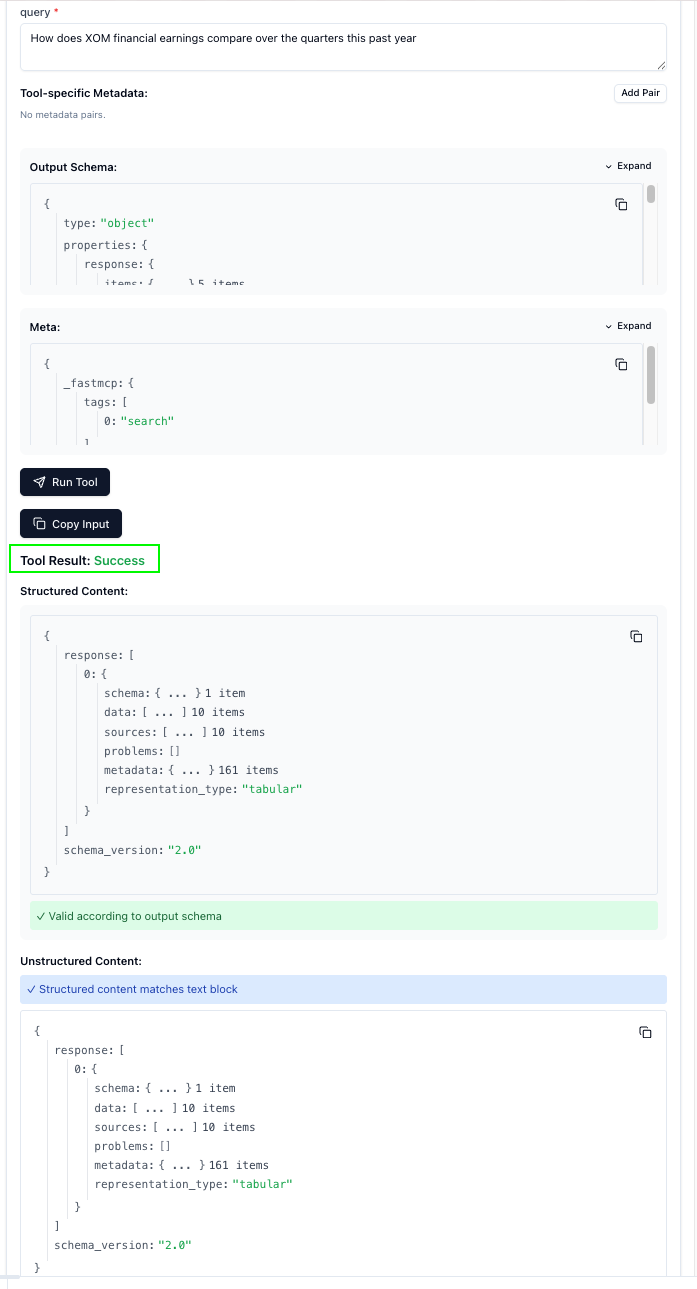
To test the tool, input any query you want into the query menu box. Then click Run Tool. You will see that Tool Result shows Success.