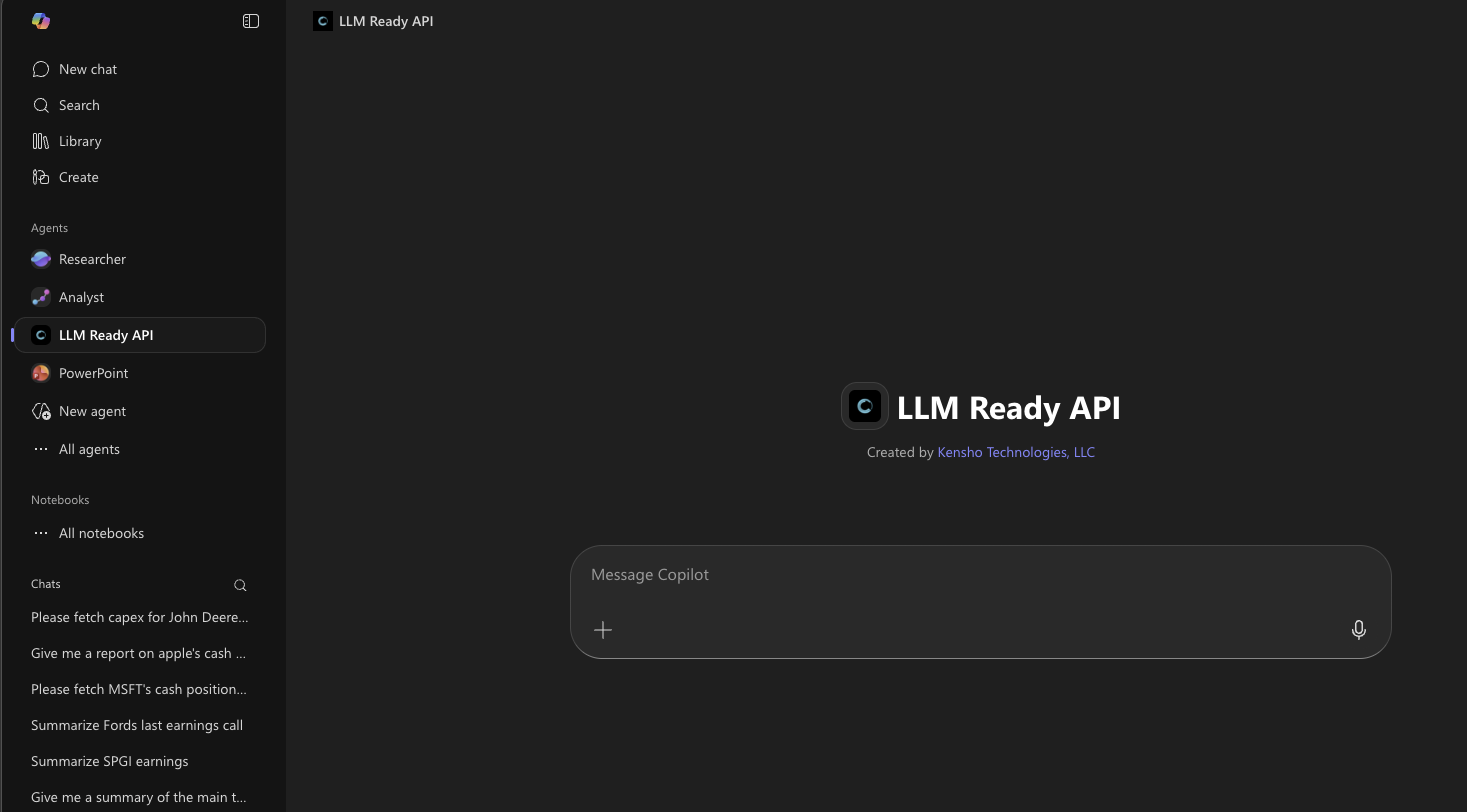
Microsoft Copilot Studio MCP Integration
These instructions walk you through integrating the S&P Global LLM-Ready API as a Microsoft Copilot Studio (opens in a new tab) agent, which enables you to use it with Microsoft 365 and Microsoft Teams.
Setup
Step 1: Navigate to Microsoft Copilot Studio
Navigate to Microsoft Copilot Studio (opens in a new tab). On the left sidebar, select Agents.
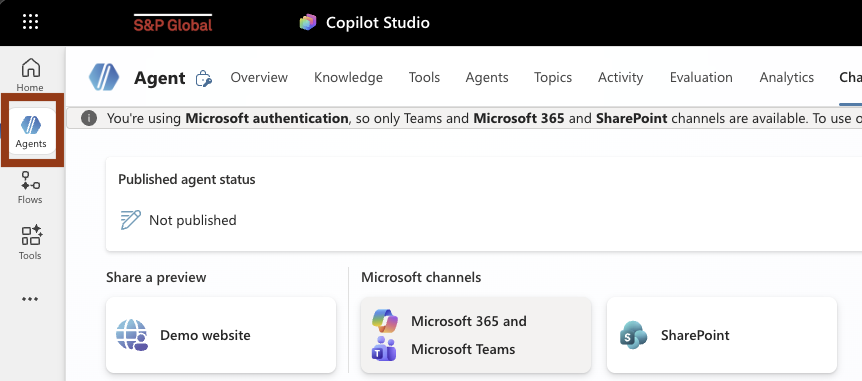
In the top right corner, select Create blank agent.

Step 2: Configure your agent
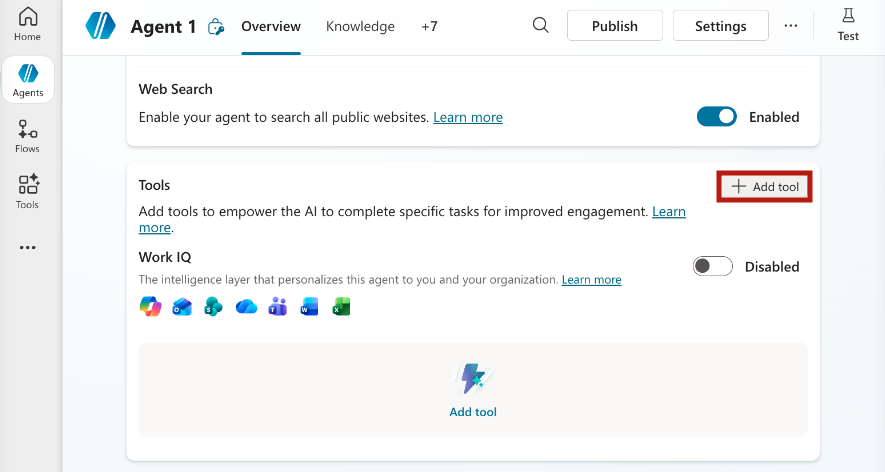
Fill in the details of your agent: the name, description, model, instructions, etc. Scroll to the Tools section and select Add tool.
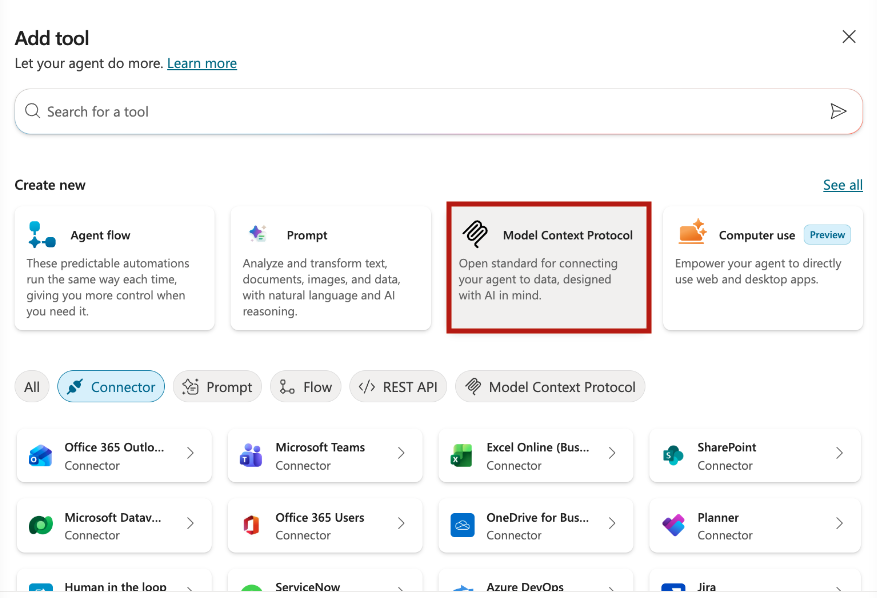
Step 3: Select Model Context Protocol
In the Add tool popup, select Model Context Protocol under the Create new sub-menu.
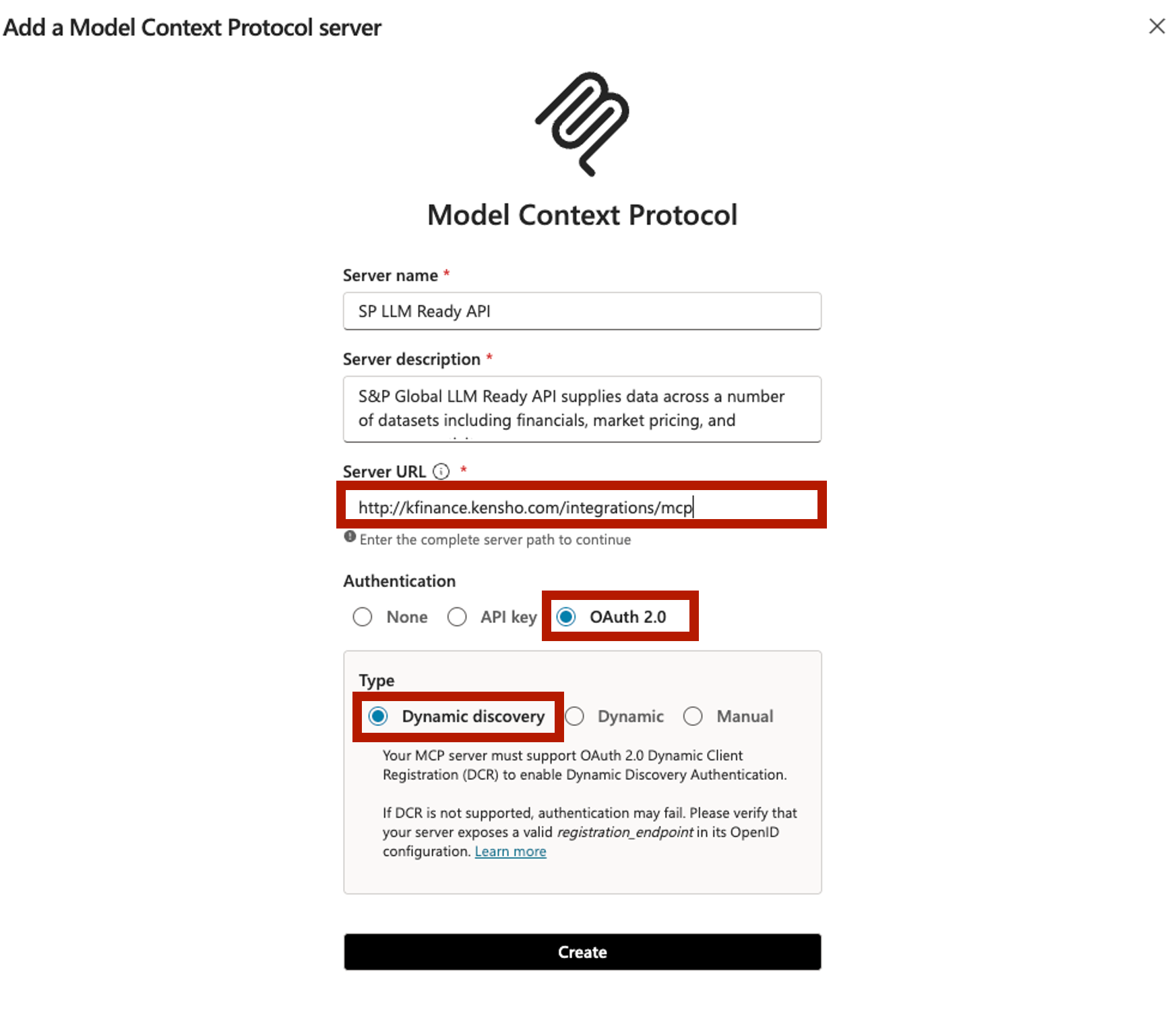
Step 4: Add the LLM-Ready API Model Context Protocol server
Fill in the Server name and Server description, and set the following fields:
- Server URL:
https://kfinance.kensho.com/integrations/mcp - Authentication: OAuth 2.0
- Type: Dynamic discovery
Select Create to add the server. This may take a moment.
Step 5: Create a new connection
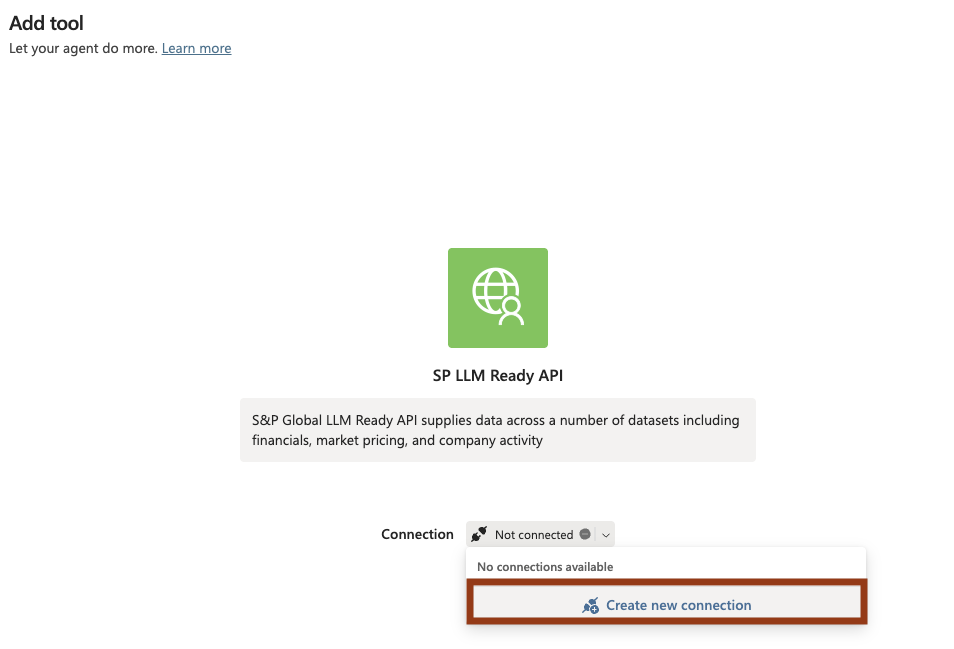
Your tool should now be created. Under Connection, select Not connected > Create new connection. This will take you through an Okta browser login flow.
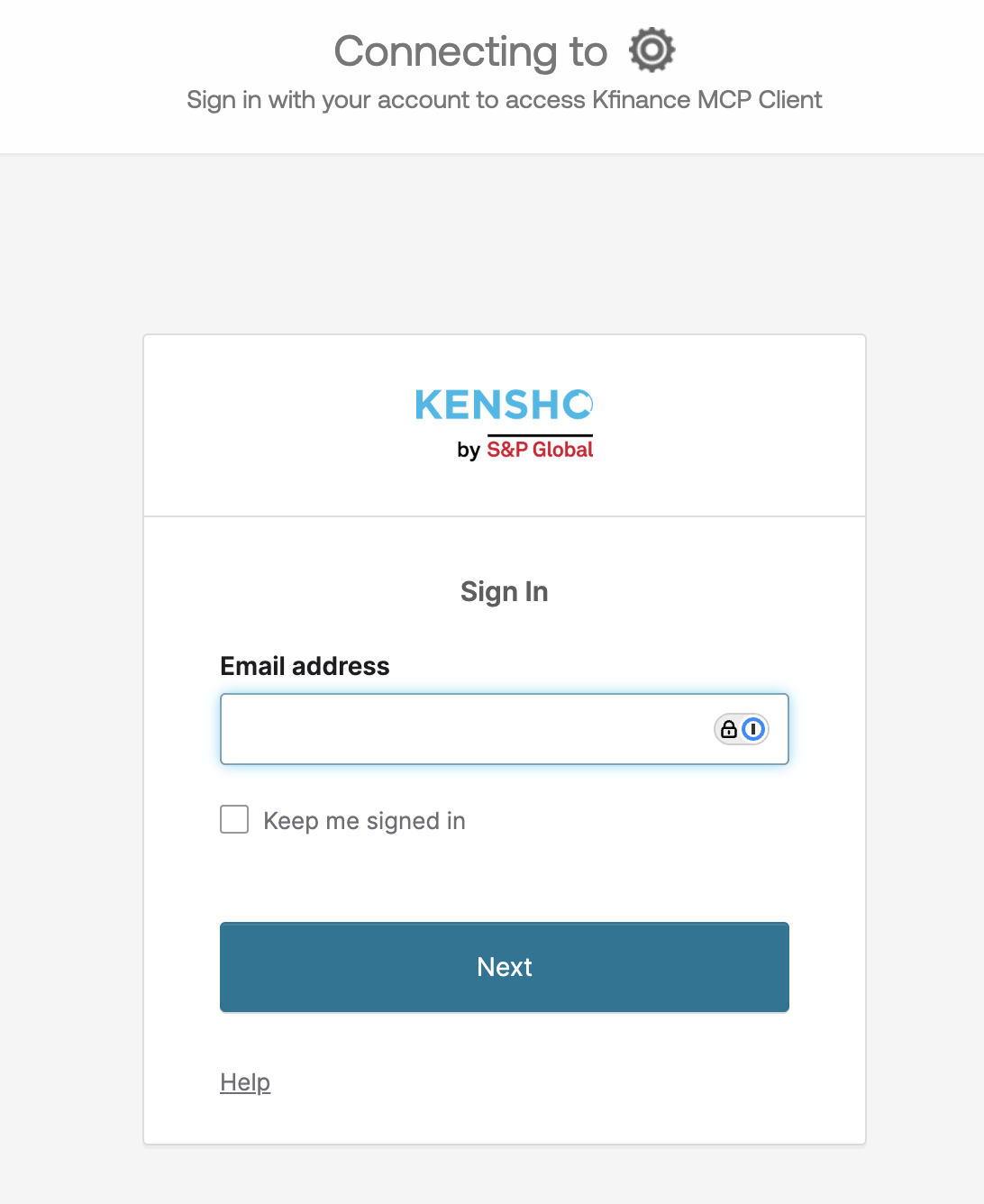
Step 6: Log in with Kensho Okta credentials
Log in with your Kensho Okta credentials, which were sent via email when you signed up for a trial or account. Completing the Okta sign-in will redirect you back to Copilot.
Step 7: Add and configure the connection
Once you are redirected back to Copilot, select Add and configure.
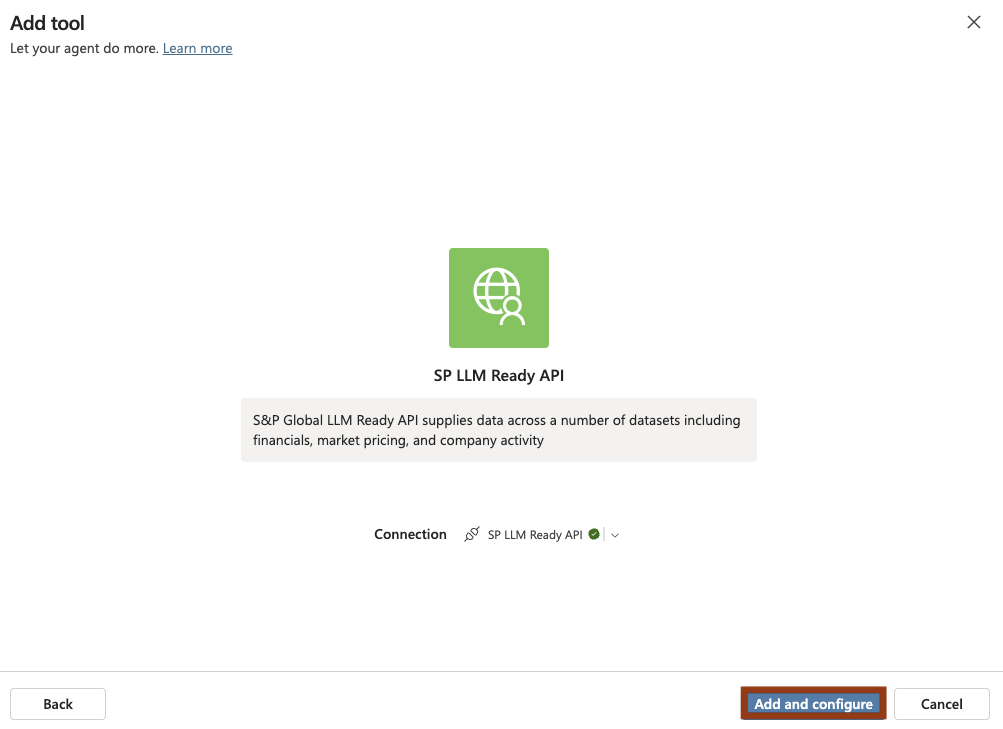
You should now see a list of available tools.
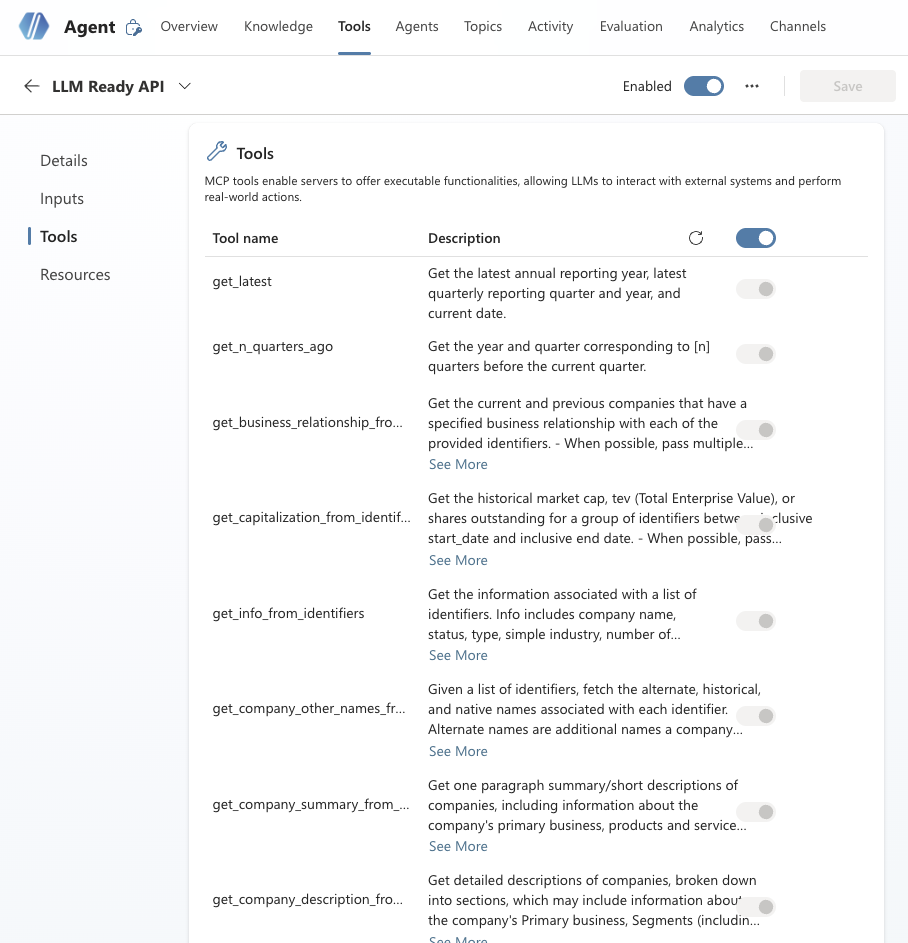
Step 8: Test your agent
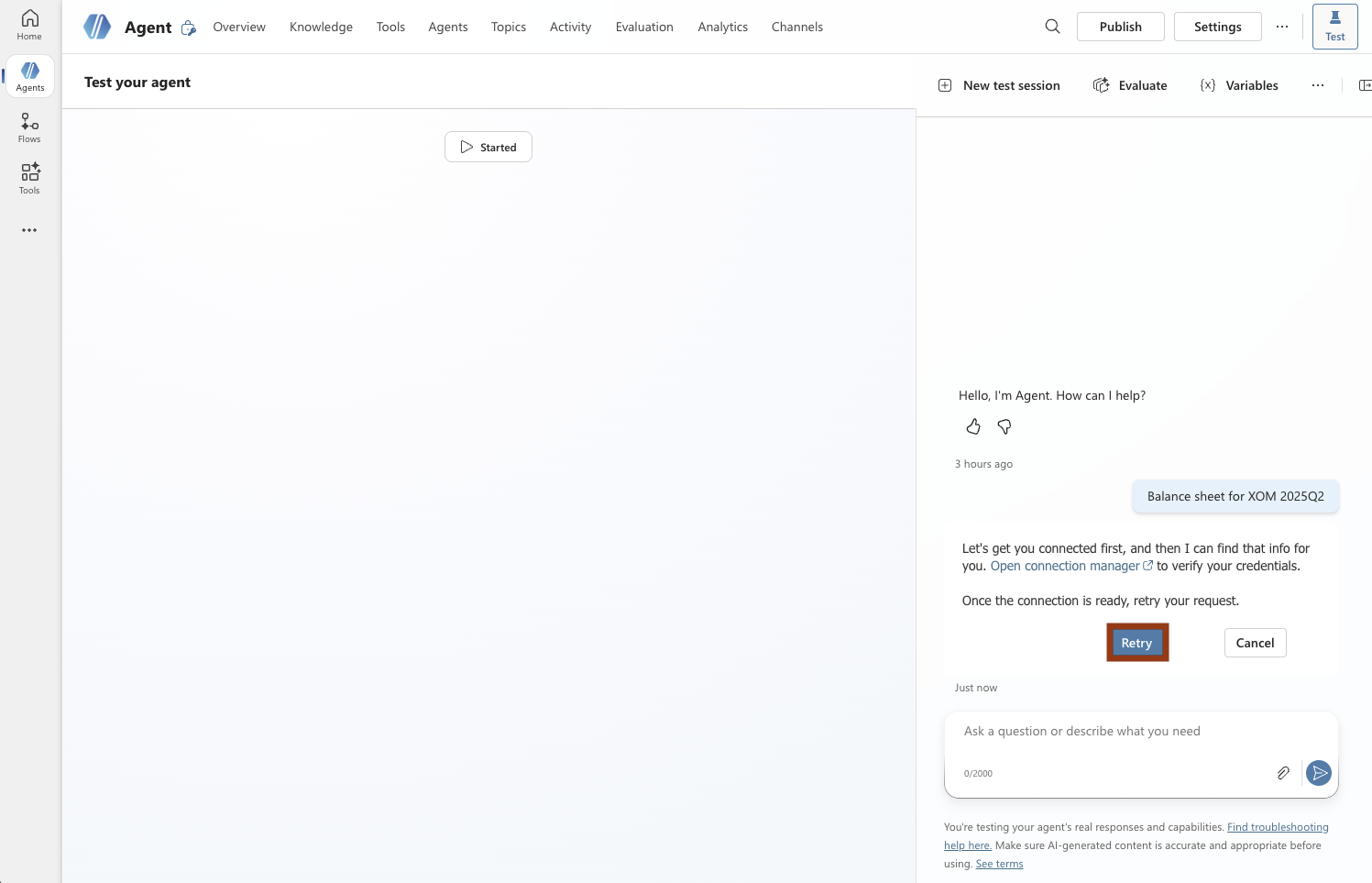
In the top left corner, select Test to test your agent. For example, try asking "Balance sheet for XOM 2025Q2". You will be prompted to connect before continuing. Select Open connection manager to open the Manage your connections page. Make sure to keep the existing chat window open.
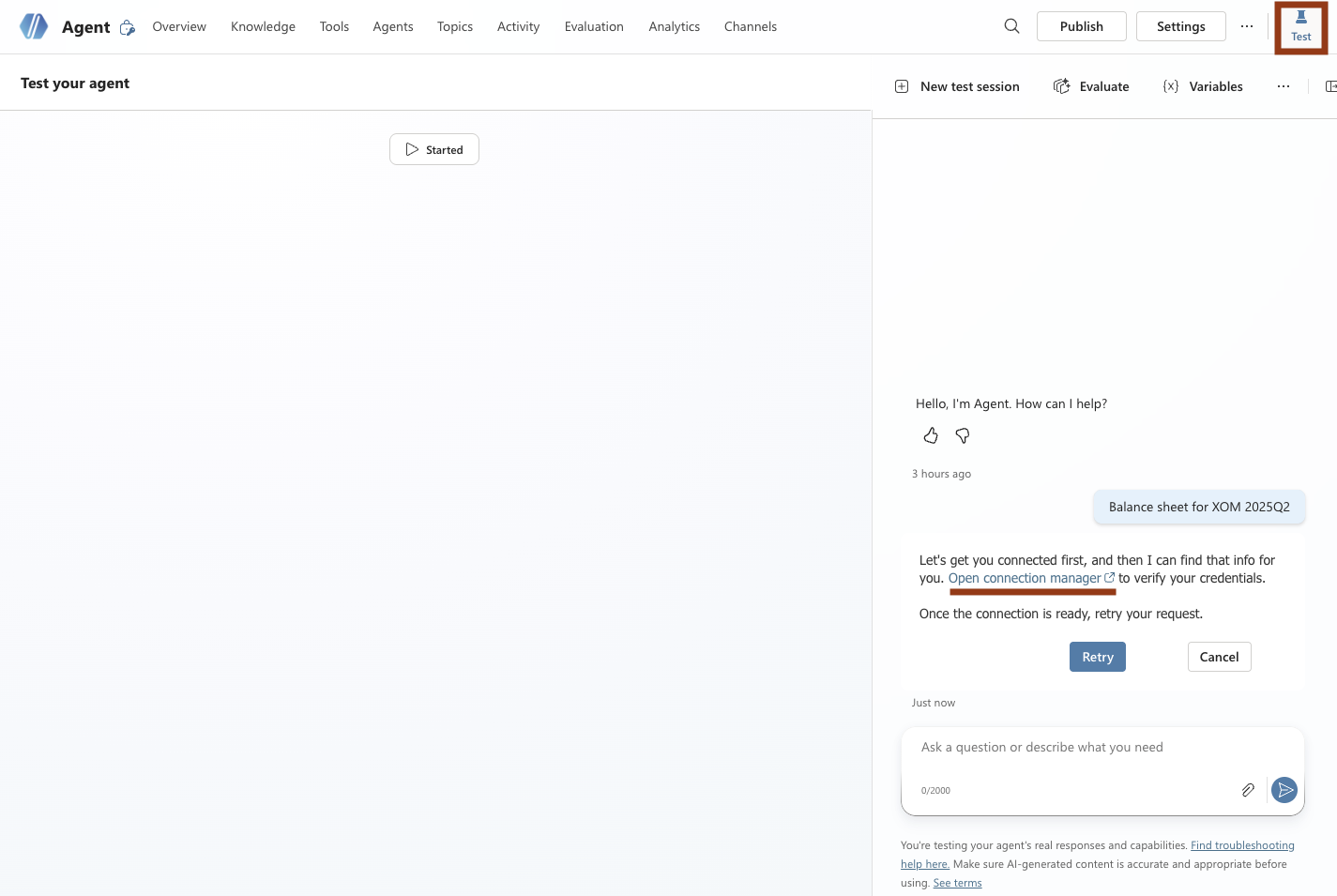
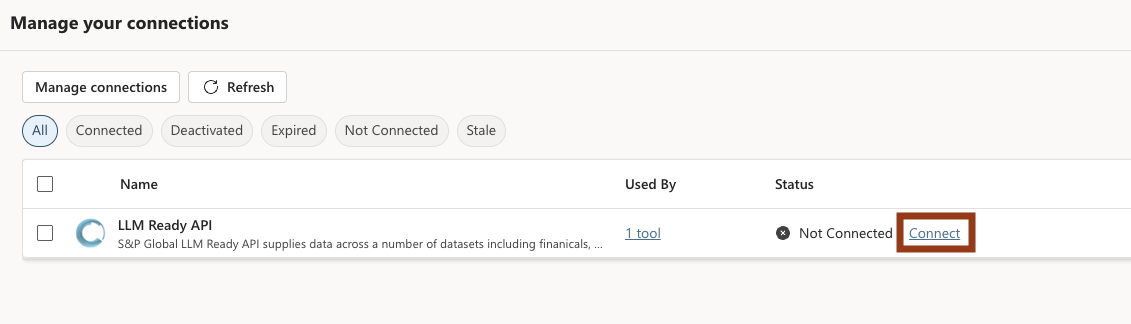
Step 9: Manage your connections
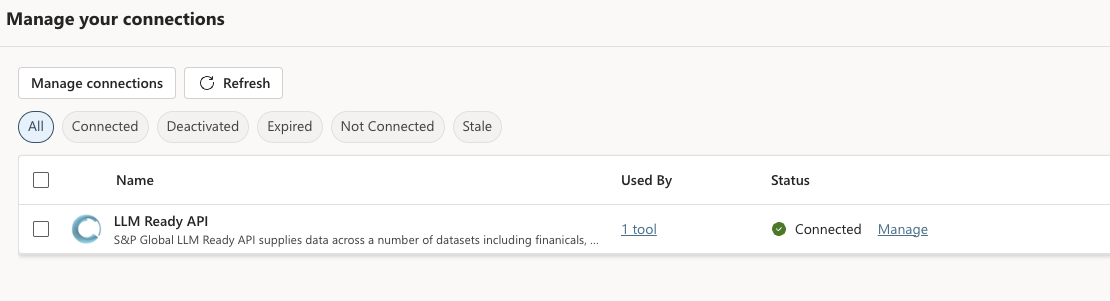
Find the LLM-Ready API connection you created and select Connect.
This will take you through the Microsoft and Kensho Okta authentication flow. Once authenticated, you should see a green checkmark next to your connection. Select Submit.
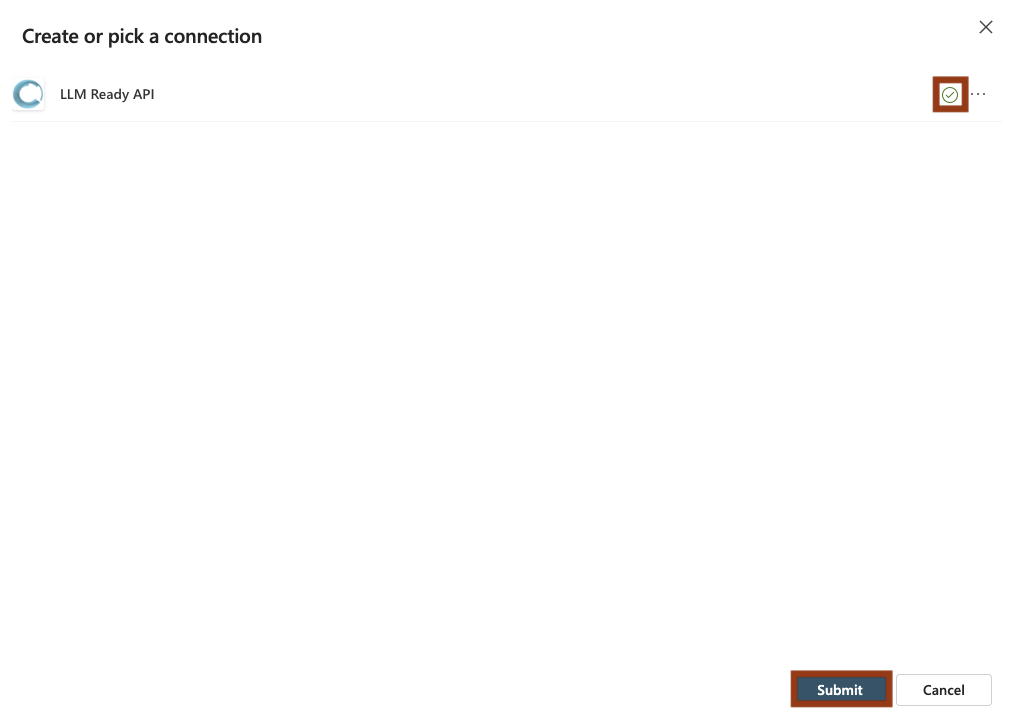
You should now see that you are connected. You can close this tab.
Step 10: Retry your connection
Return to your test chat window and select Retry.
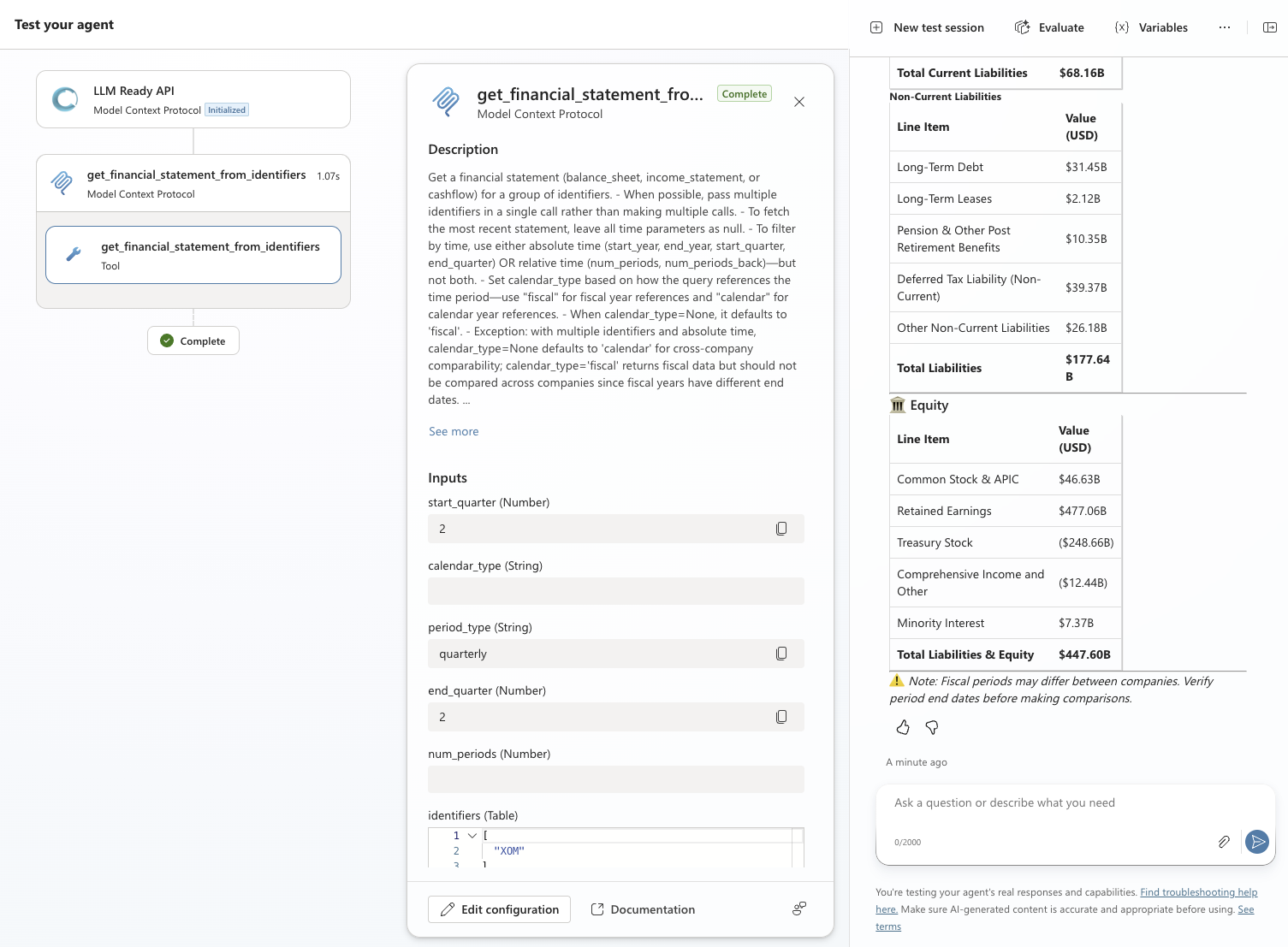
You should receive a successful response from the agent with data retrieved via the LLM-Ready API MCP tools, similar to the image below.
Step 11: Connect to your channels
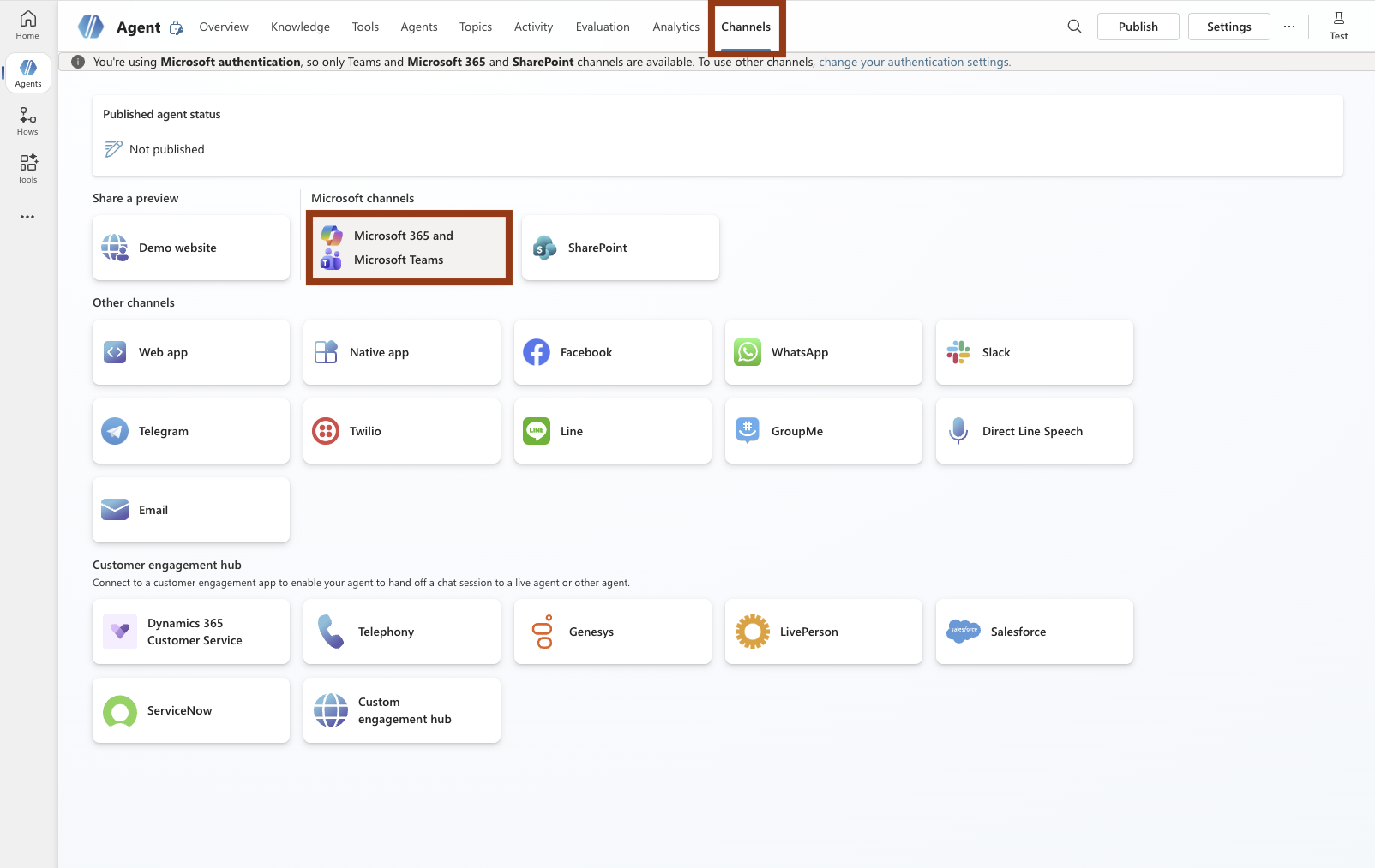
To connect your agent to Microsoft channels such as Microsoft 365 and Microsoft Teams, select Channels > Microsoft 365 and Microsoft Teams at the top of the page.
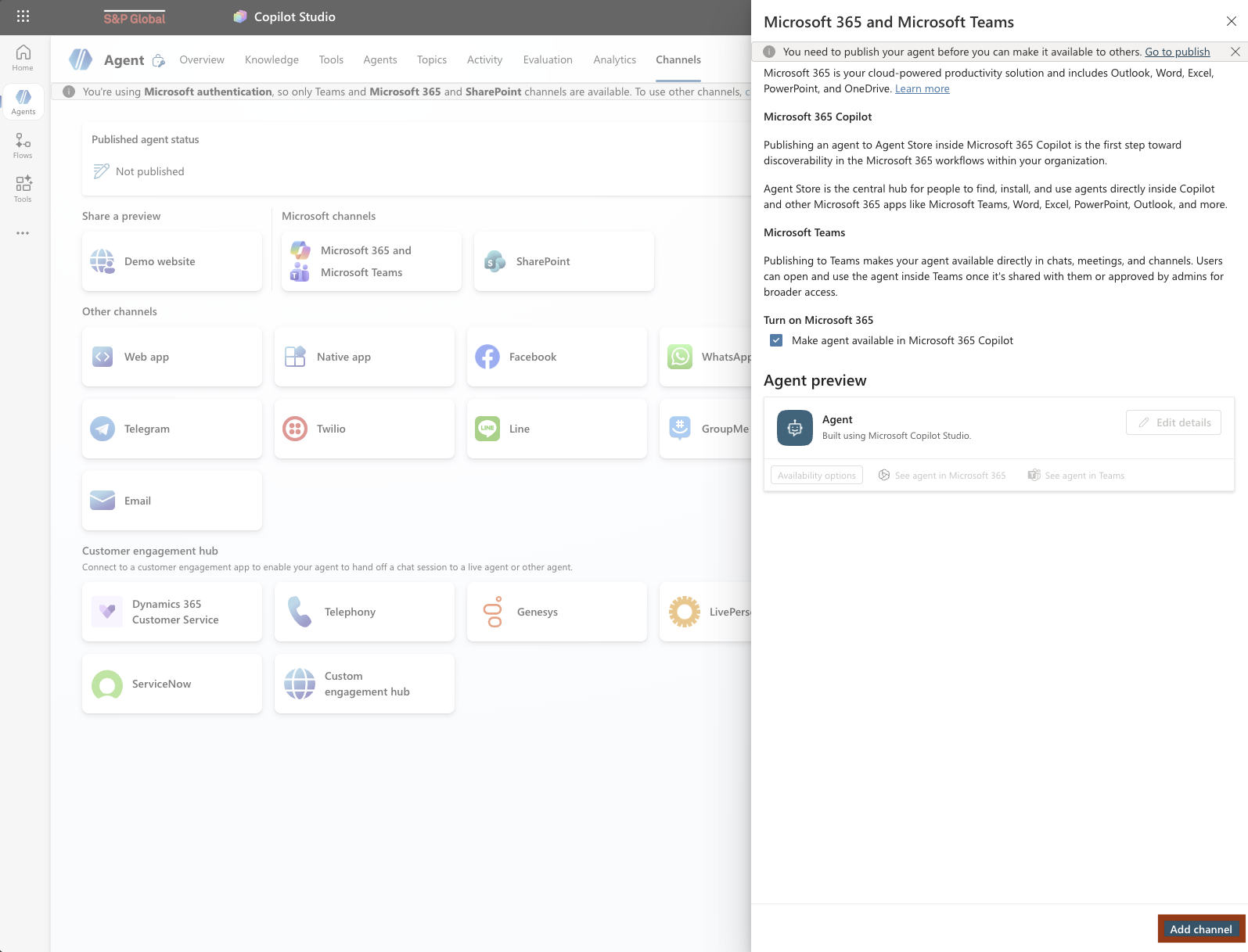
A panel will open on the right side. Select Add channel in the bottom left corner.
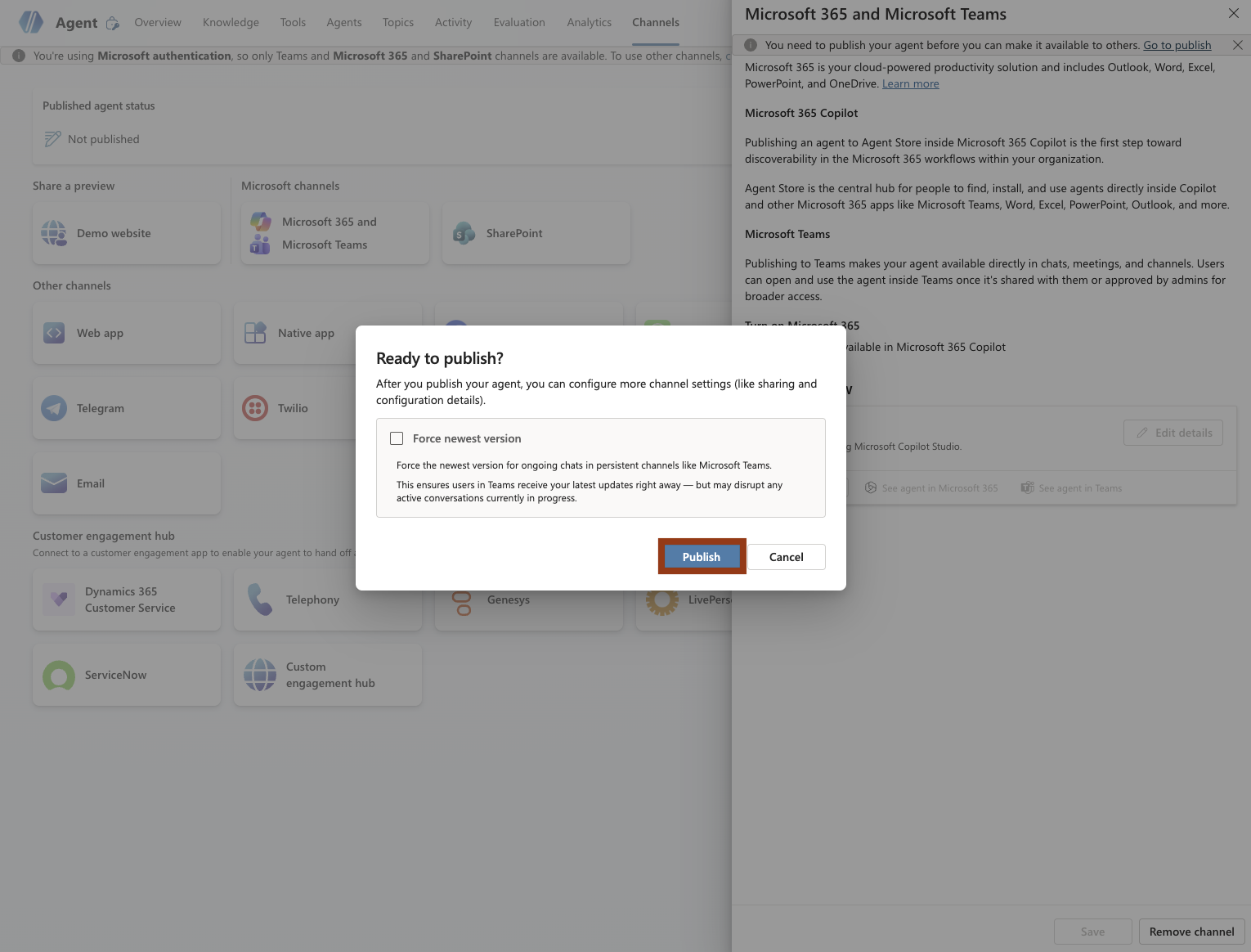
In the popup, choose whether to push the newest version, then select Publish.
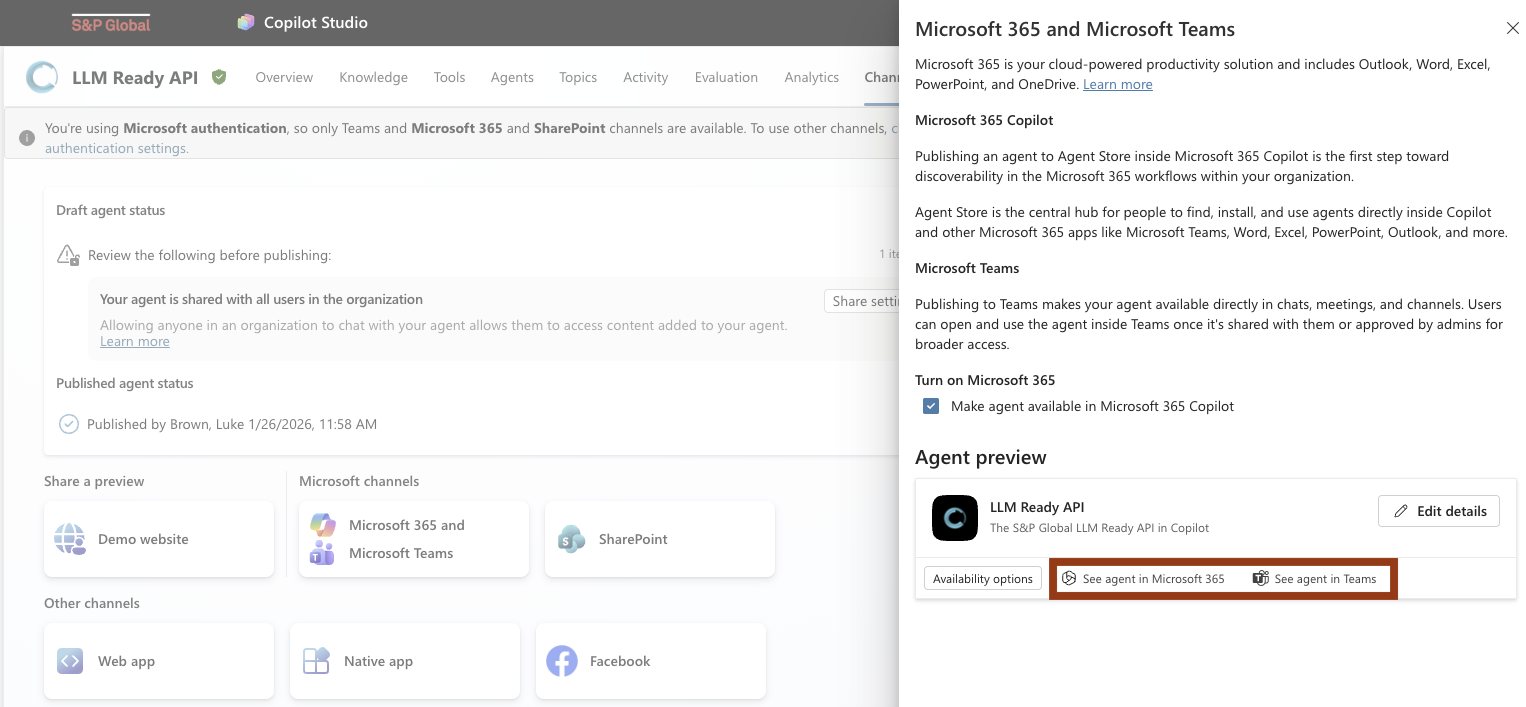
Your agent is now available on Microsoft channels. Select See agent in Microsoft 365 or See agent in Teams to use your agent on the corresponding platform.
Step 12: Use your agent
With your agent and connection set up, the LLM-Ready API is now available in Microsoft 365 and Microsoft Teams. Your agent will appear under the Agents tab in Teams.